OpenAI
Configure OpenAI as an LLM provider for LF AI Platform evaluations.
CLI
CLI integrations allow automating your assessment pipelines and triggering CI/CD jobs via the LatticeFlow CLI.
Step 1: Configure the integration
Register OpenAI once by supplying your API key.
lf integration add --provider openai --api-key $OPENAI_API_KEYStep 2: Use in an evaluation
Reference the model in your evaluation run config.
For a list of models, please refer to the list of OpenAI models and use openai/<model_key.
models:
  - $provider: "openai/gpt-4o"
Web UI (Global Provider)
You can integrate a global provider by supplying the API key once, then creating individual models.
Step 1: Navigate to Integration Settings
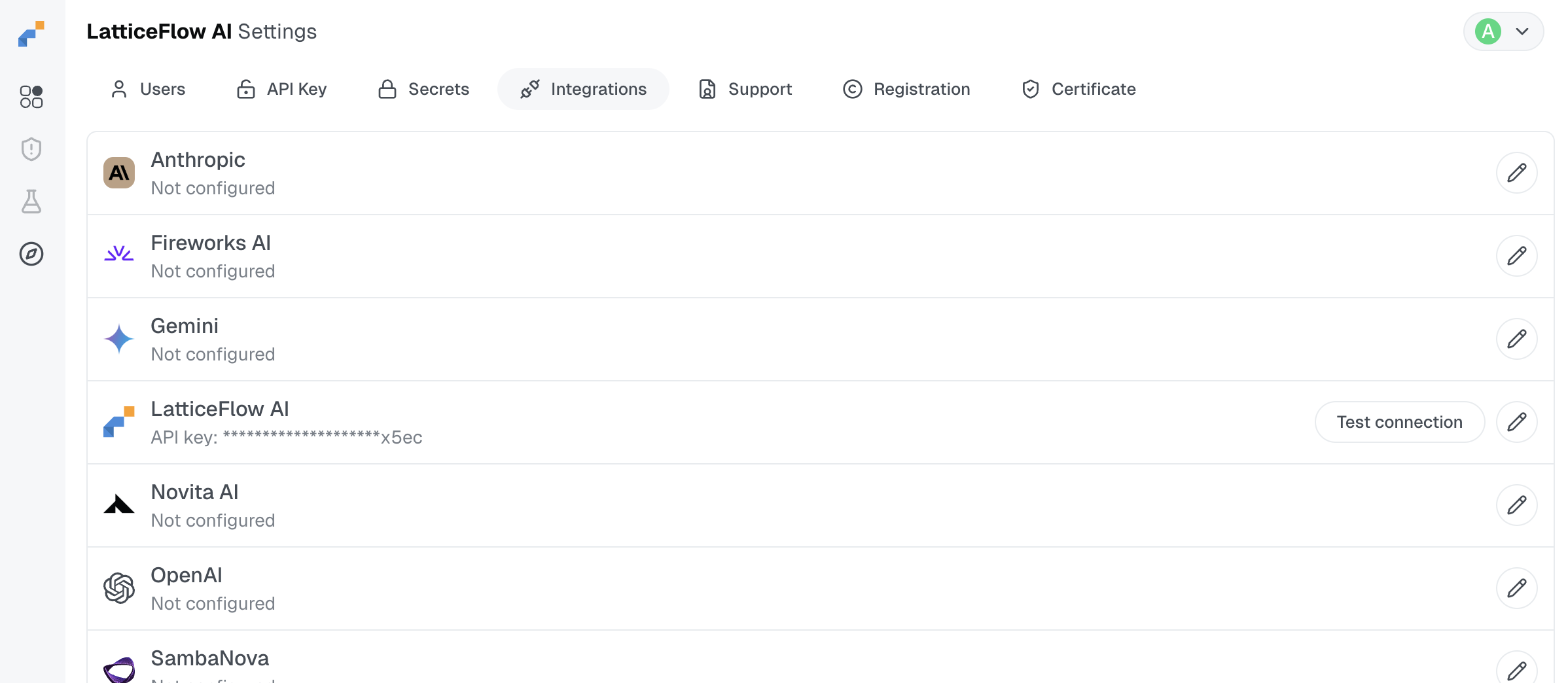
Open the LatticeFlow platform and go to Settings > Integrations.
Step 2: Select OpenAI Provider
From the list of available providers, select OpenAI.
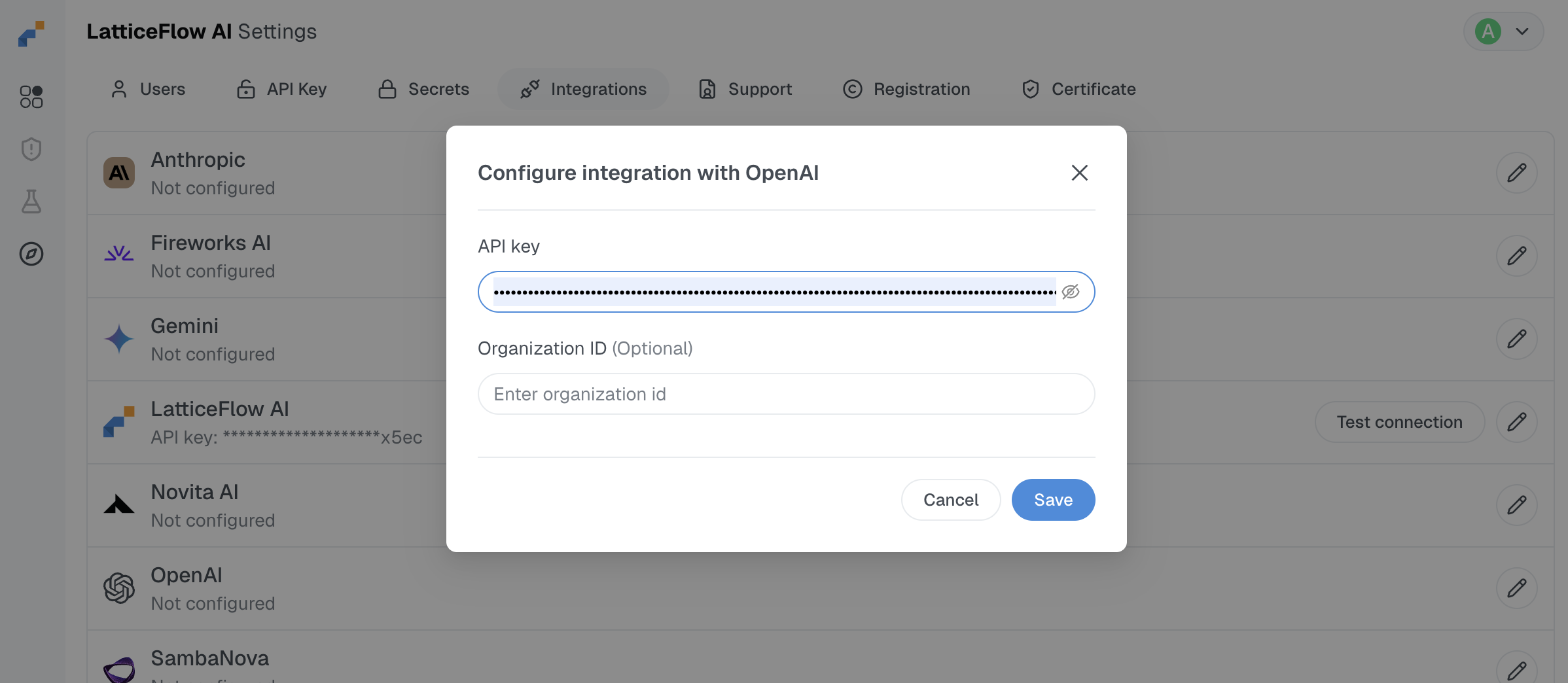
Step 3: Add your API Key
Paste your OpenAI API key into the field and save.
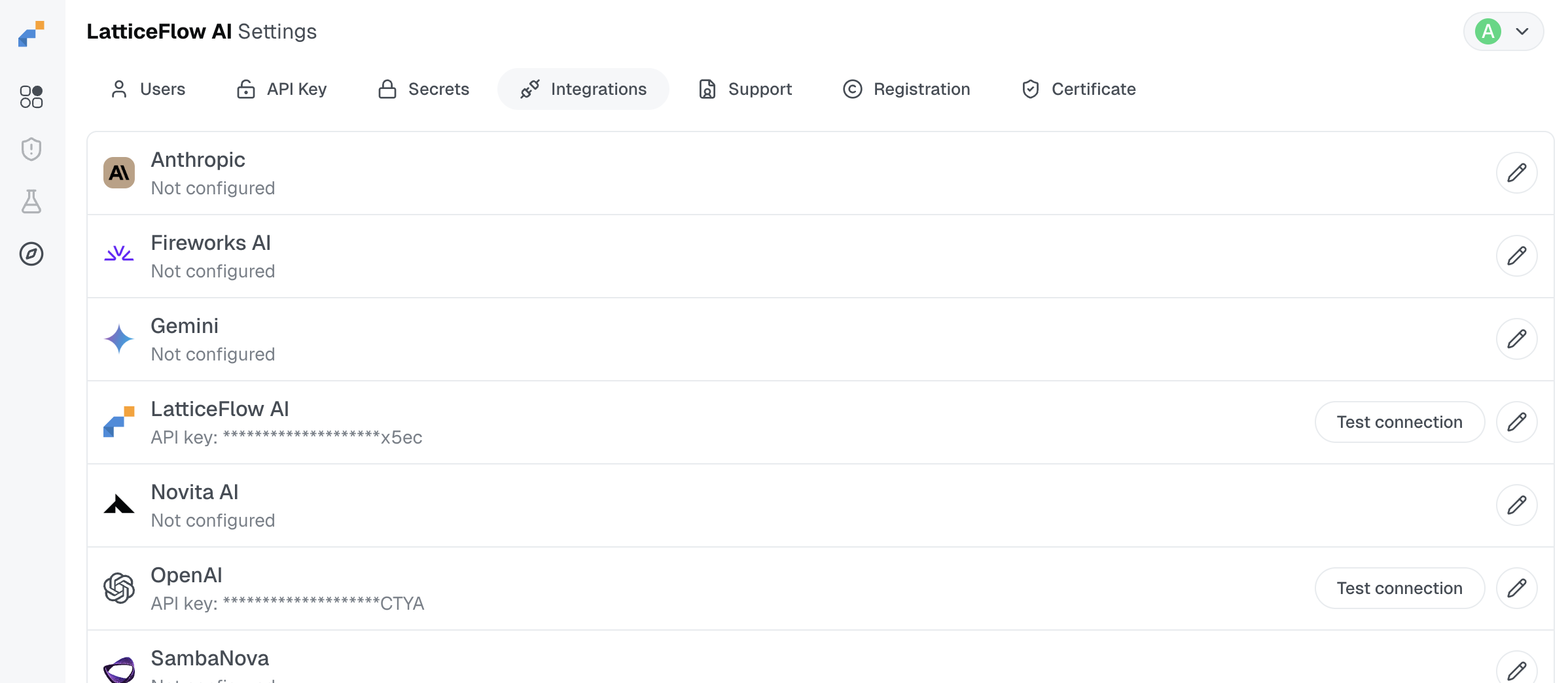
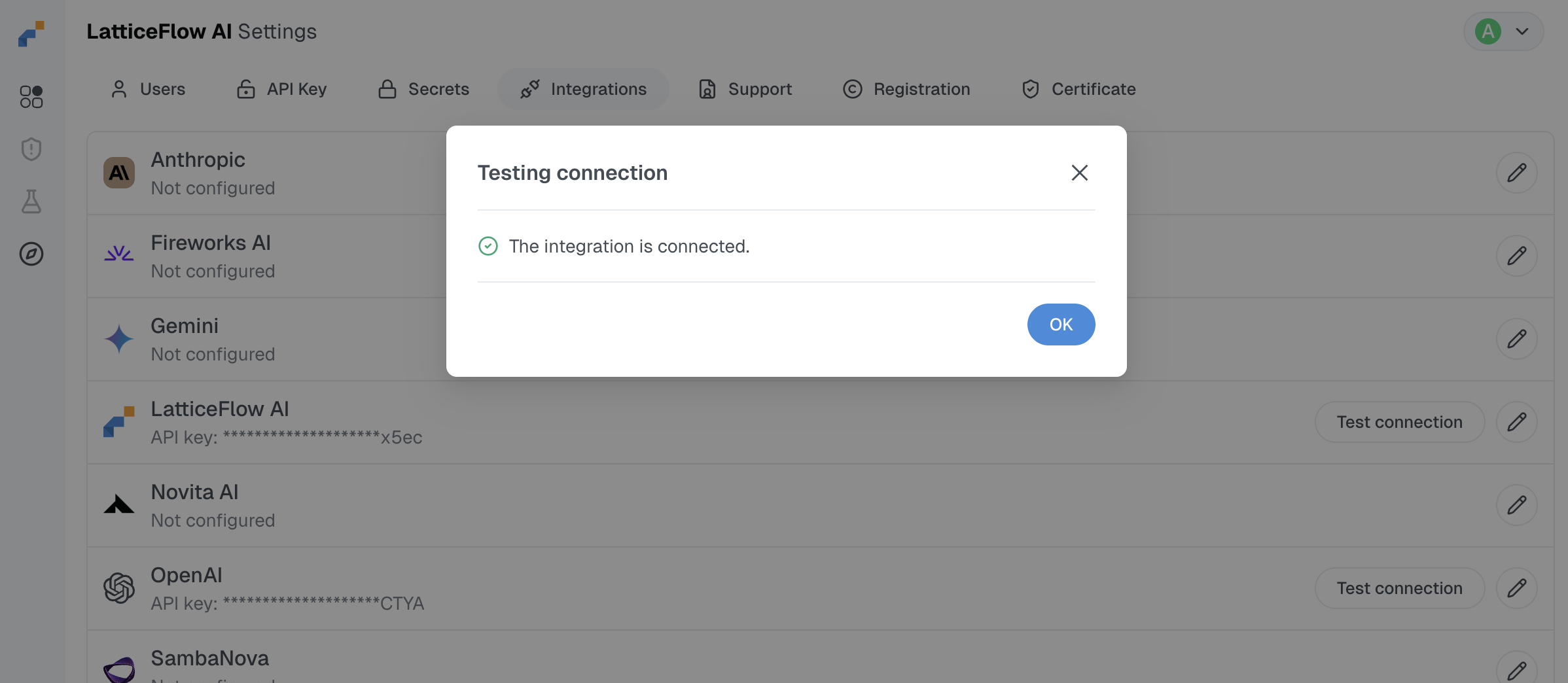
Step 4: Test the Integration
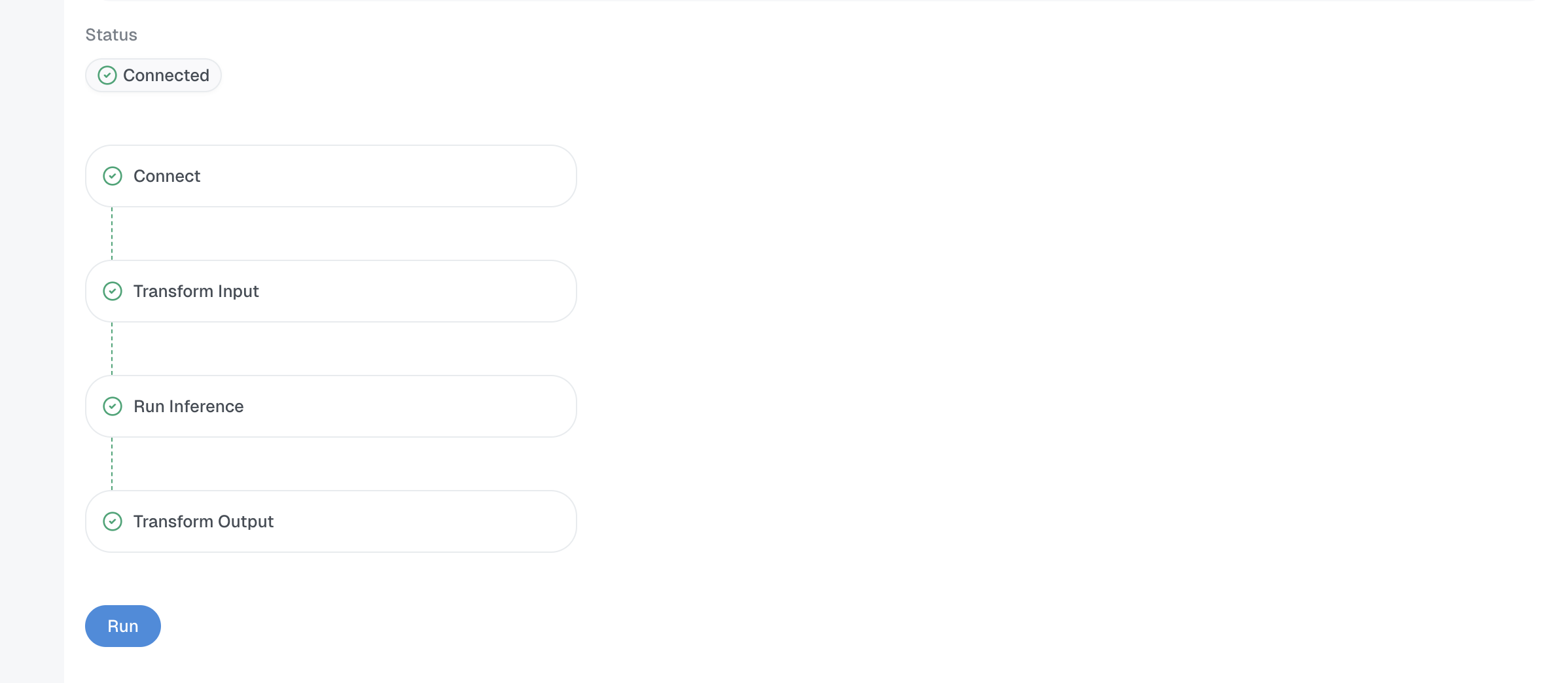
Run a connection test to confirm the key works.
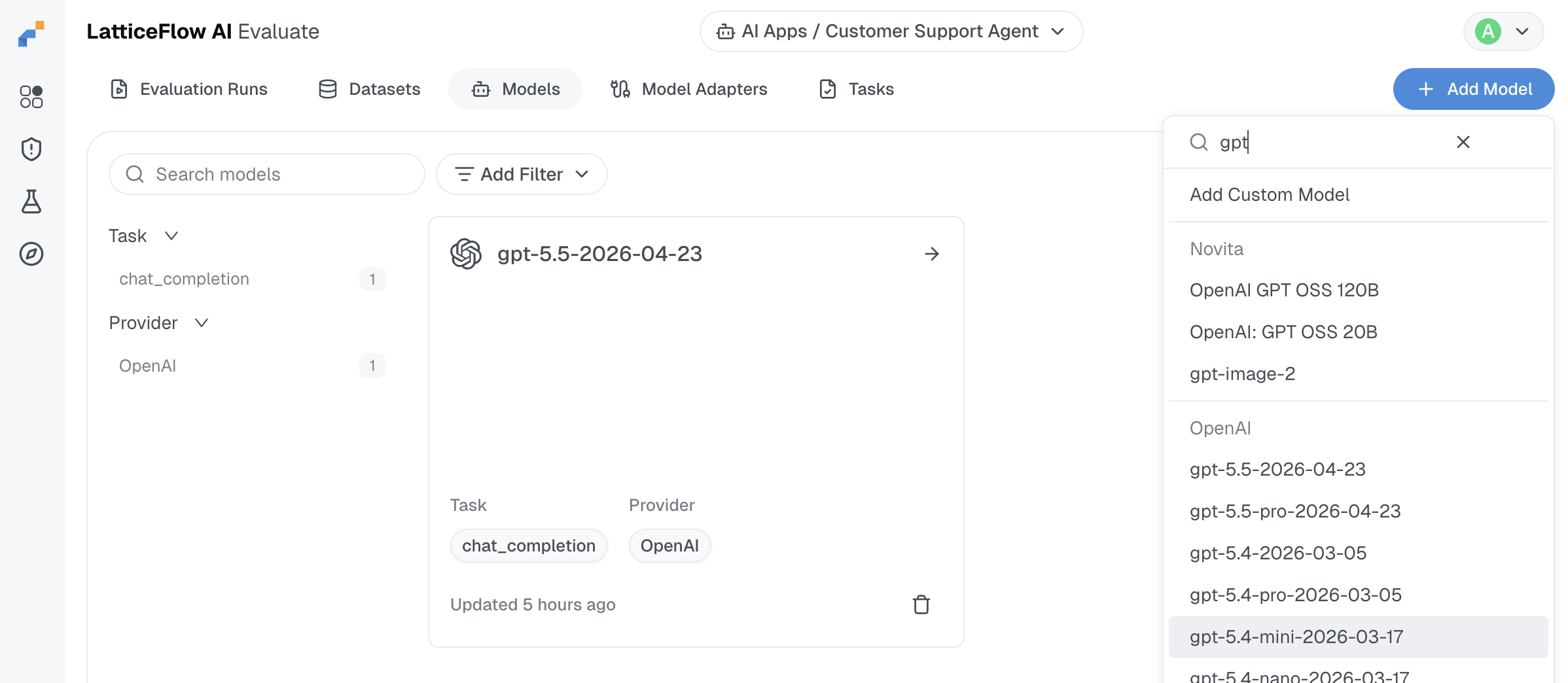
Step 5: Navigate to AI System > Evaluate > Models
Open the AI System you are assessing, navigate to the models section, and select the model to add.
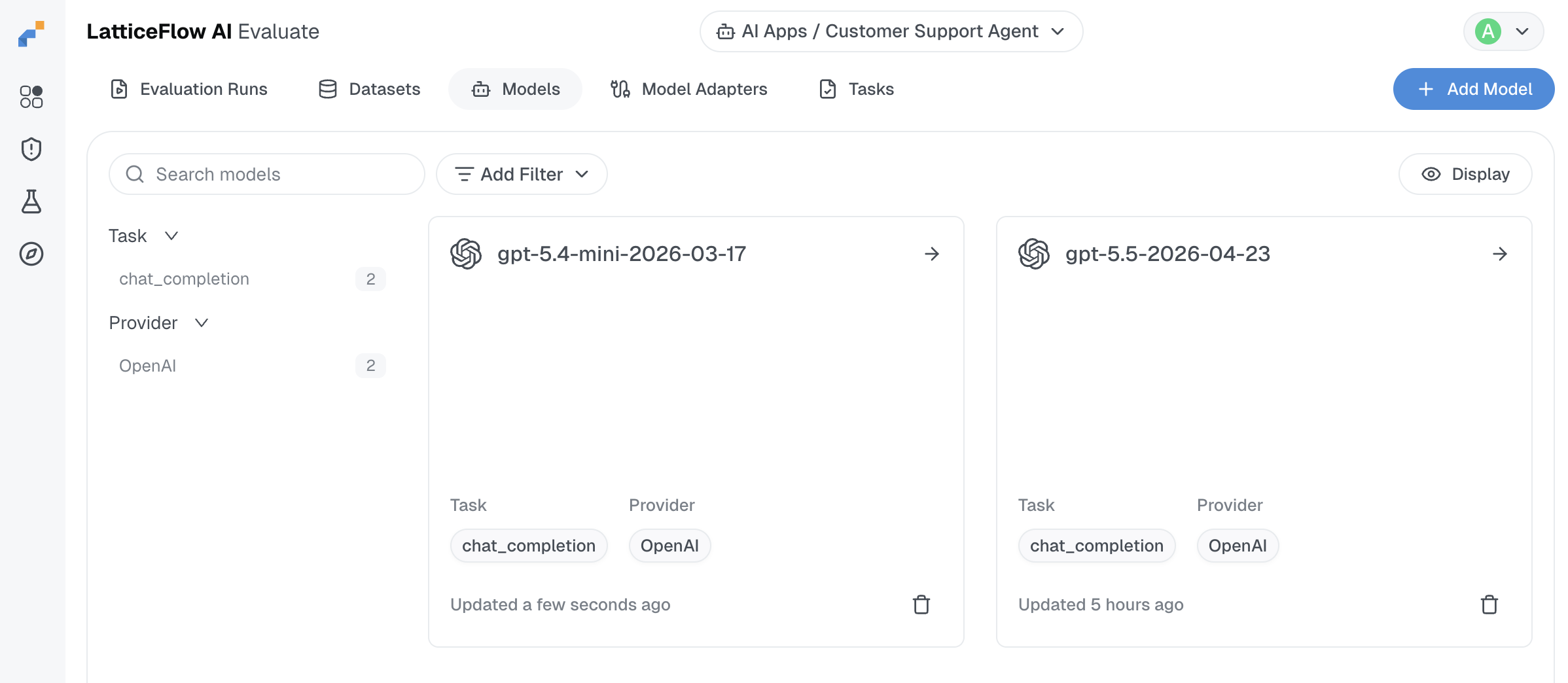
The model now appears in the list of available models to use.
Web UI (Single Model)
You can also add individual models and customize them if needed from the AI System > Evaluate > Models page.
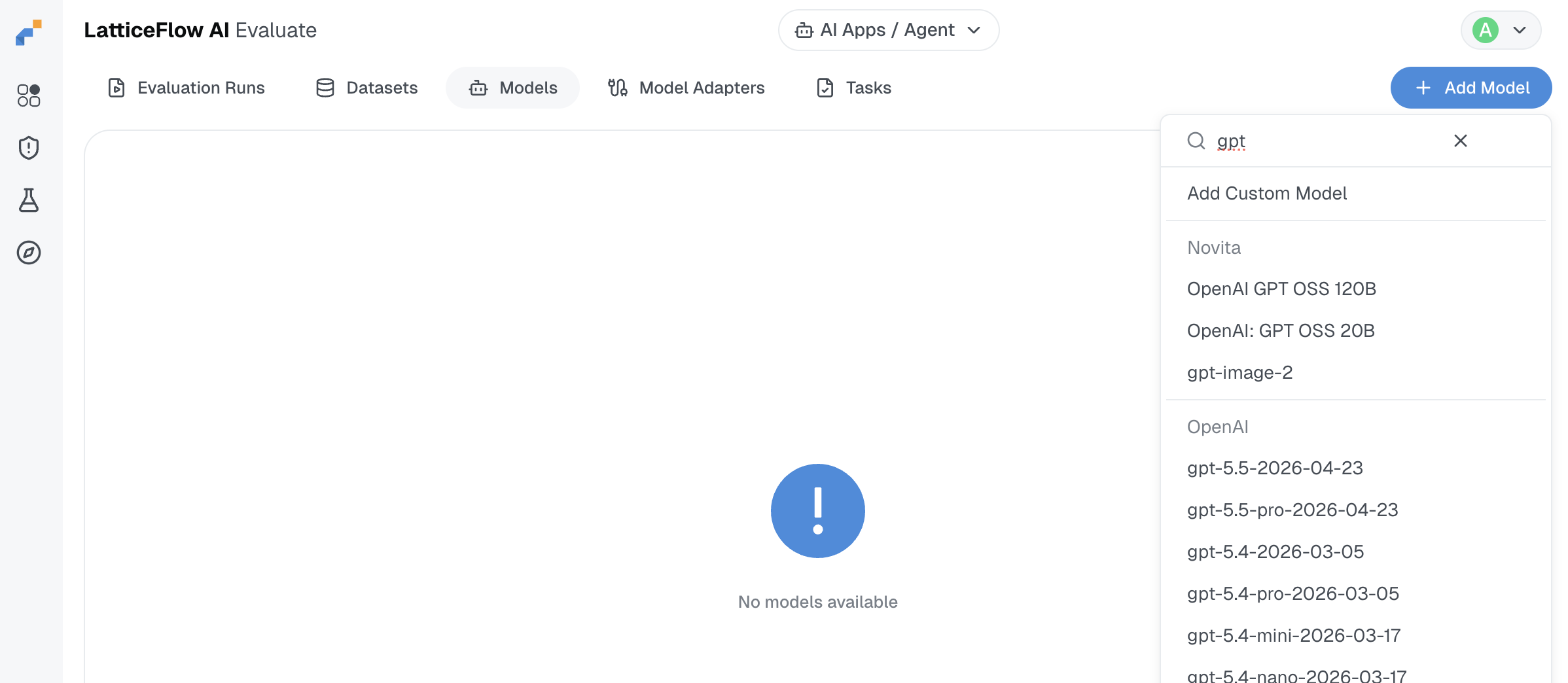
Step 1: Create new Custom Model Integration
From the Models page, create a new custom model integration.
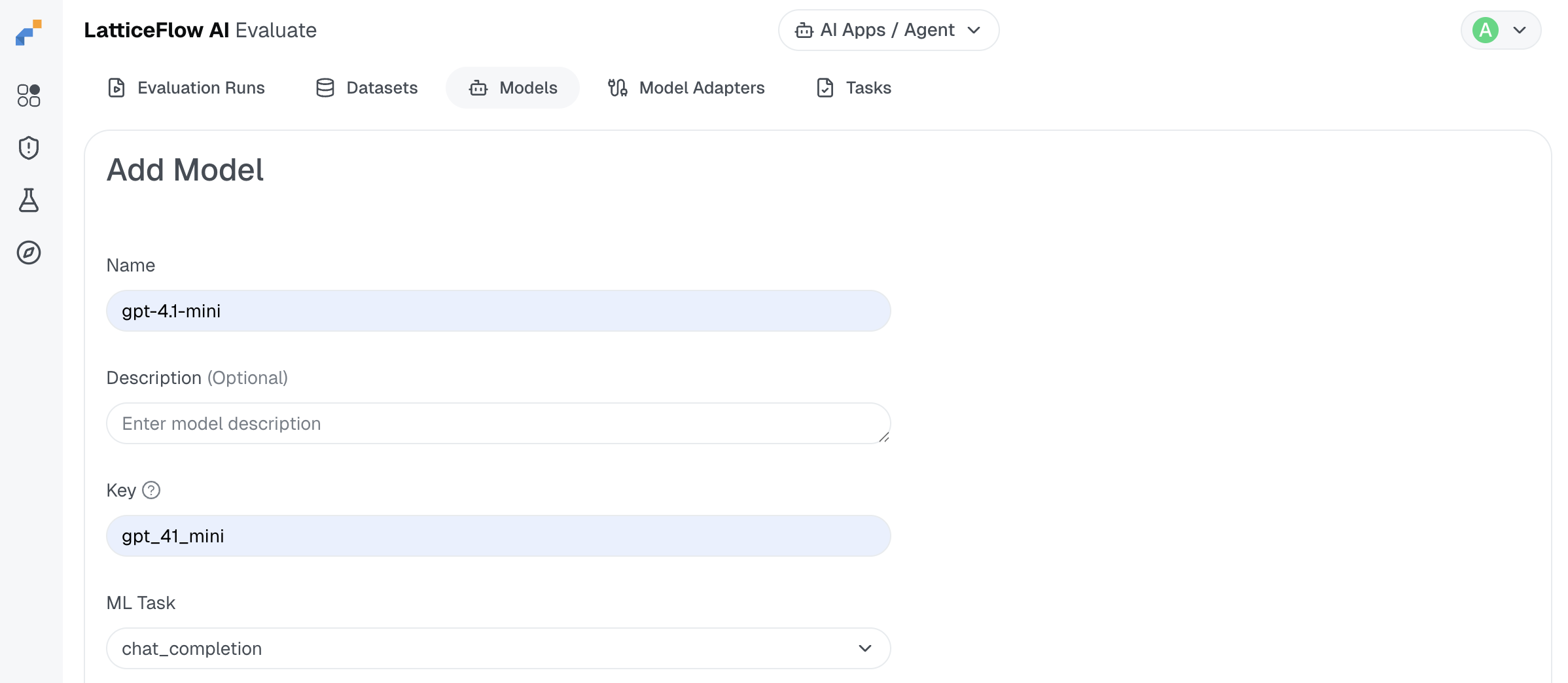
Step 2: Fill in Basic Information
Assign the name and key used to refer to this model within the LatticeFlow platform.
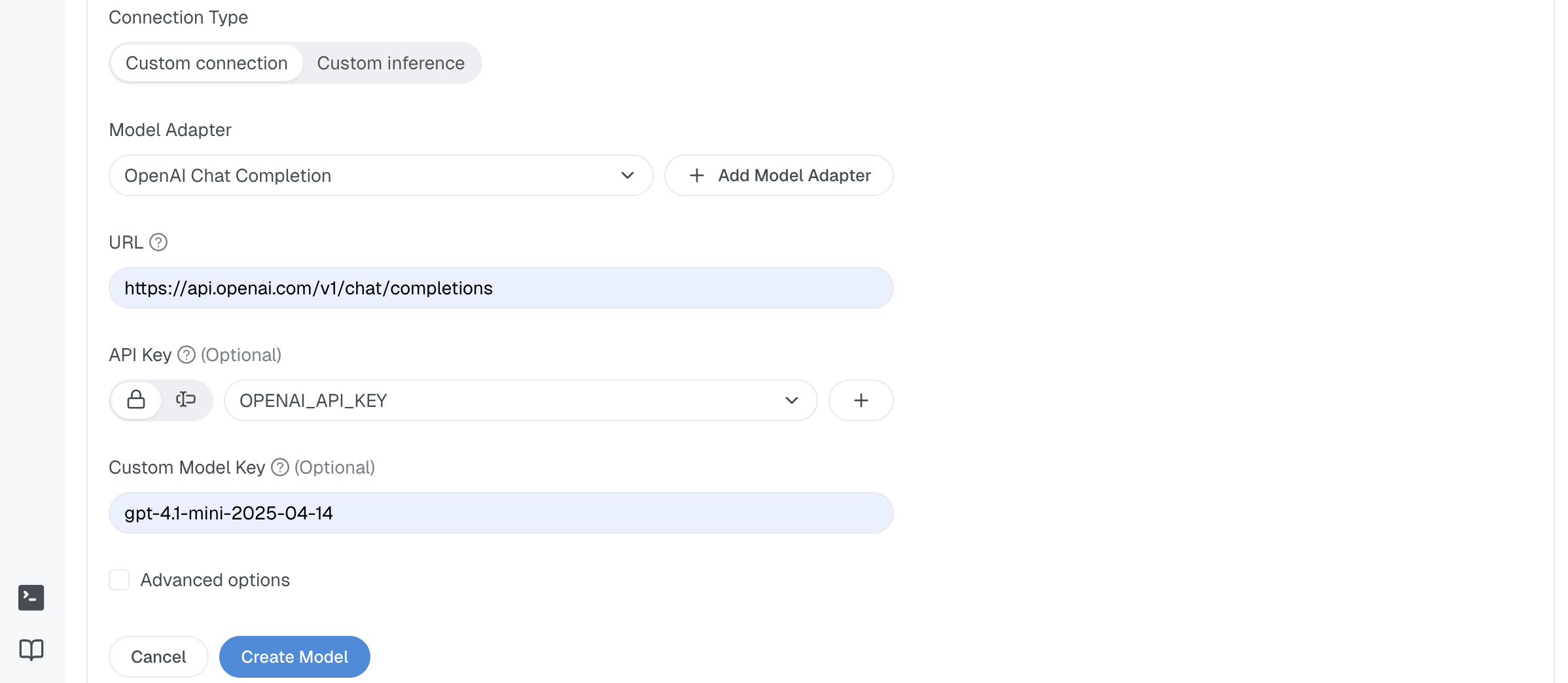
Step 3: Fill in Connection Information
For an OpenAI model, the key fields are:
- Model Adapter: select
OpenAI Chat Completion - URL: the OpenAI Chat Completions endpoint,
https://api.openai.com/v1/chat/completions - API Key: your OpenAI key
- Custom Model Key: the OpenAI model key you would like to use
Step 4: Test the Connection
Click Create Model, select Test Connection in the top right, and click Run.