Configure the Appliance
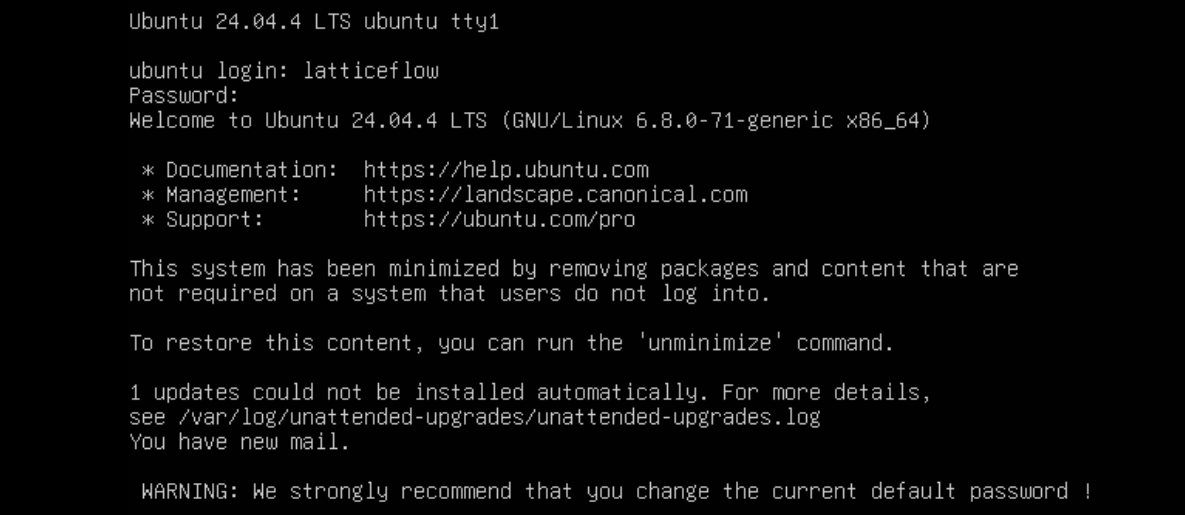
On its first boot, the virtual appliance launches a setup wizard for the initial configuration. Open a console on the machine or connect over SSH with an SSH client. The default login is username latticeflow and password latticeflow.
Step 1: Set the Time Zone
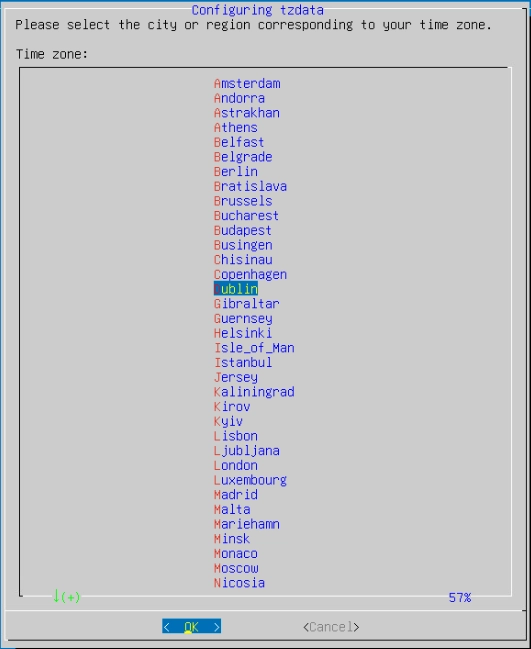
Configure the time zone the appliance uses. Scroll to the appropriate geographic area, tab to OK, and press Enter.
Step 2: Configure Network Settings
Provide the network information the appliance needs to join the local network.
- On a cloud appliance (AWS, Azure, or GCP), this section is skipped automatically.
- If your network has a DHCP server, the appliance obtains an address on its first boot and the wizard offers to keep it. Otherwise, use a static IP address from the private range of the local LAN.
If the appliance already received an address over DHCP, the wizard shows it and asks whether to keep it. Enter y to keep the DHCP configuration and continue with the hostname, or n to enter a static configuration instead. With DHCP, the DNS servers and domain come from the lease, so they are not asked.
--- Ethernet Networking Configuration ---
The interface eth0 is currently configured via DHCP:

 IP address 192.168.1.23
 Netmask 255.255.255.0
 Gateway 192.168.1.1
 DNS 192.168.1.1
 Domain example.com

Do you want to keep the DHCP configuration ? (y/n): y
To use a static address, or when no DHCP lease was found, enter the IP address, netmask (optional), and gateway. Enter y to confirm or n to re-enter the values.
--- Ethernet Networking Configuration ---
Please enter the IP Address :
Please enter the Netmask (or type enter to use default: 255.255.255.0) :
Please enter the Gateway :

Do you want to keep the following configuration ?
IP address
Netmask
Broadcast
Gateway
Confirm ? (y/n): y
With a static address, configure the primary and secondary DNS servers and, optionally, the DNS domain. Enter y to confirm or n to re-enter the values.
--- DNS Configuration ---
Please enter the DNS Server :
Please enter the Secondary DNS Server (optional, or type enter to skip it) :
Please enter the DNS domain (optional, or type enter to skip it) :

Do you want to keep the following DNS Configuration ?
domain example.com
Confirm ? (y/n): y
Finally, configure the hostname. Enter y to confirm or n to re-enter the value.
--- Host Configuration ---
Please enter the hostname (or type enter to use default: ubuntu) :
$ ApplianceTest

Do you want to keep the following Host Configuration ?
Hostname: ApplianceTest
Confirm ? (y/n): y
Step 3: Verify Network Access
Once all entries are confirmed, the appliance runs a series of checks to confirm it has the required network access.
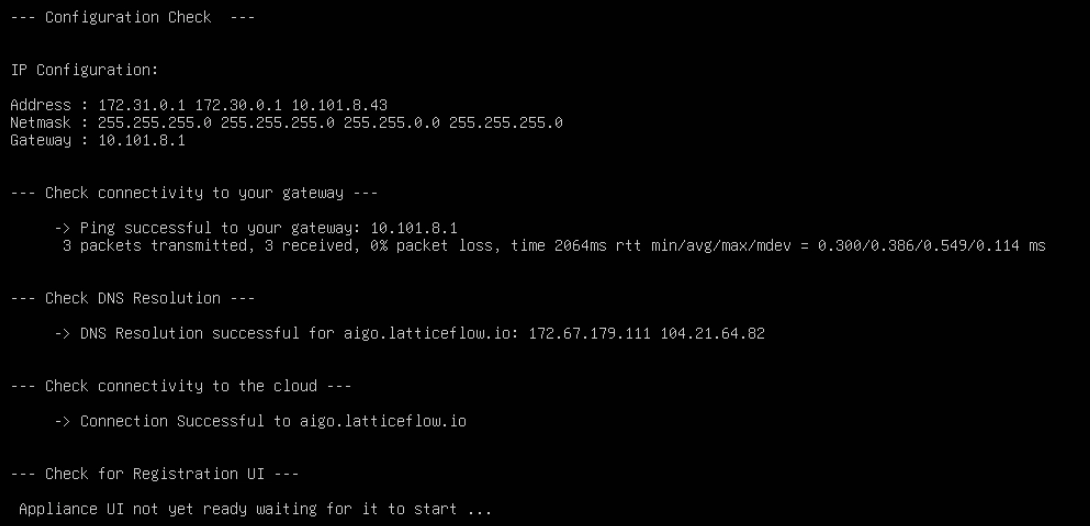

If the appliance doesn’t have direct outbound internet access, Configure a proxy before registering it.
With the network configured, Register the appliance to activate it.