Deploy on Hyper-V
Deploy the LF AI Platform virtual appliance from an image on Hyper-V using the Hyper-V manager.
Before You Begin
- Access Hyper-V Manager with permission to create new virtual machines.
- Download the appliance archive from the Cloud Console.
- Use a host that meets the Machine specifications.
- Have an External virtual switch on the host, or create one as described in Create an External Virtual Switch.
Create an External Virtual Switch
The appliance needs a virtual switch bound to the physical network of the host, so that it obtains an IP address from your DHCP server and can be reached from your workstations. The built-in Default Switch does not provide this: it is a private network behind the host that other machines cannot reach.
Skip this section if the host already has an External virtual switch.
In Hyper-V Manager, select the host, then in the Actions pane click Virtual Switch Manager….
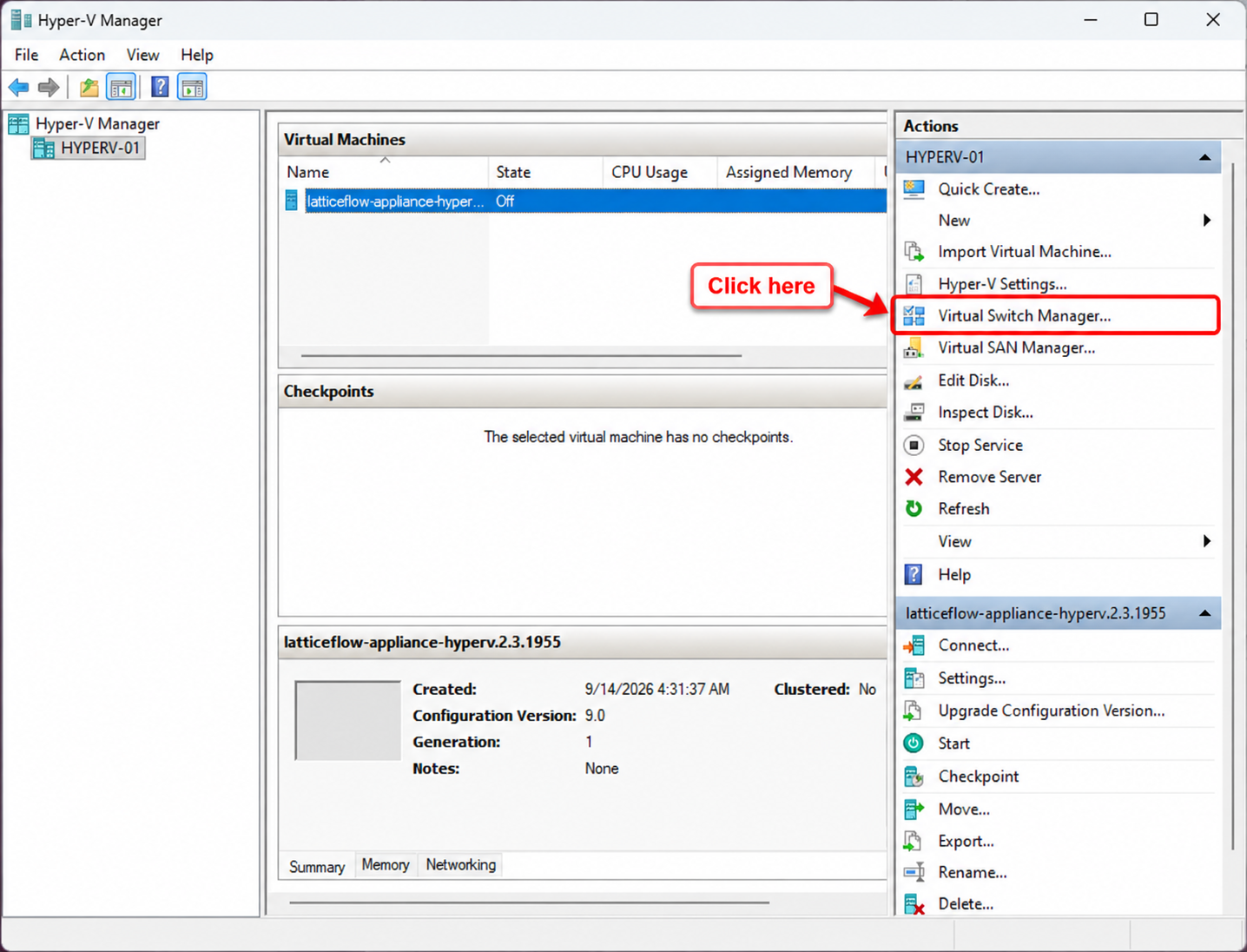
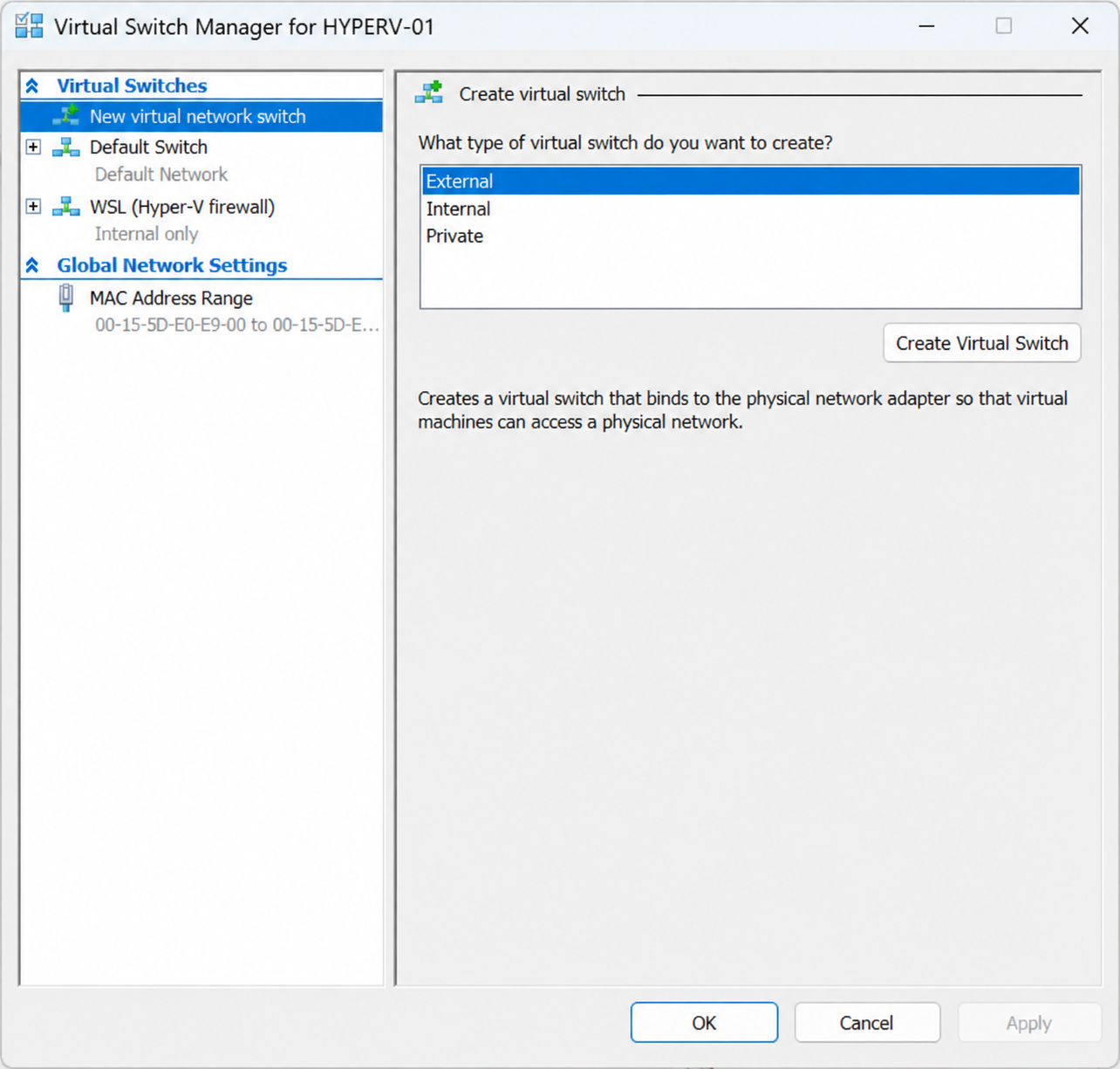
Under Virtual Switches, select New virtual network switch, choose External, and click Create Virtual Switch.
In the switch properties:
- Name: enter
latticeflow. - Connection type: select External network and choose the physical network adapter connected to your local network.
- Keep Allow management operating system to share this network adapter selected, otherwise the host loses its own connection on that adapter.
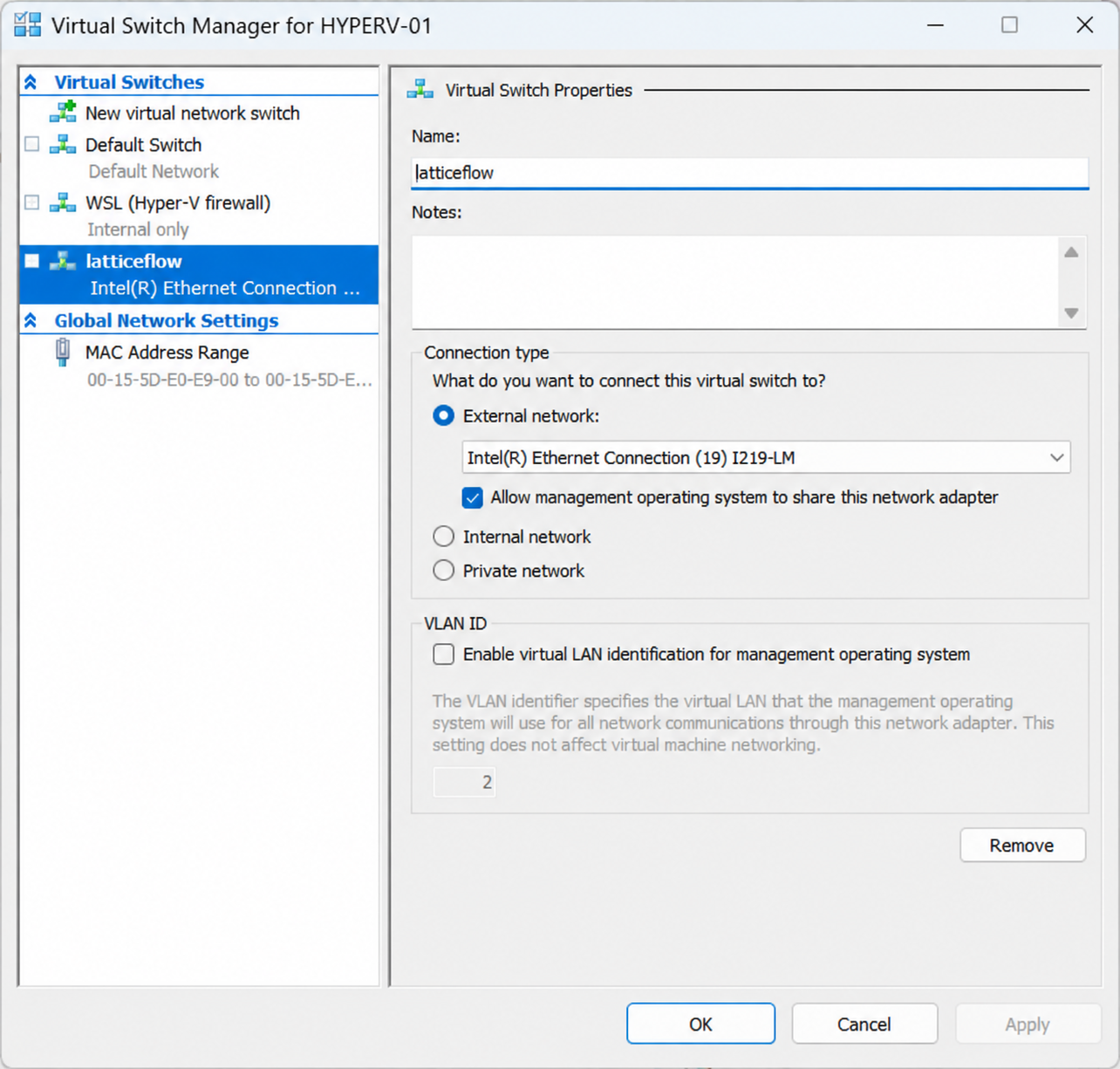
Click OK to create the switch. Hyper-V rebinds the physical adapter, which interrupts the host’s network connection for a few seconds.
Step 1: Download the Appliance Image
Download the Hyper-V zip file containing the virtual appliance image from the Cloud Console, under the Appliances menu.
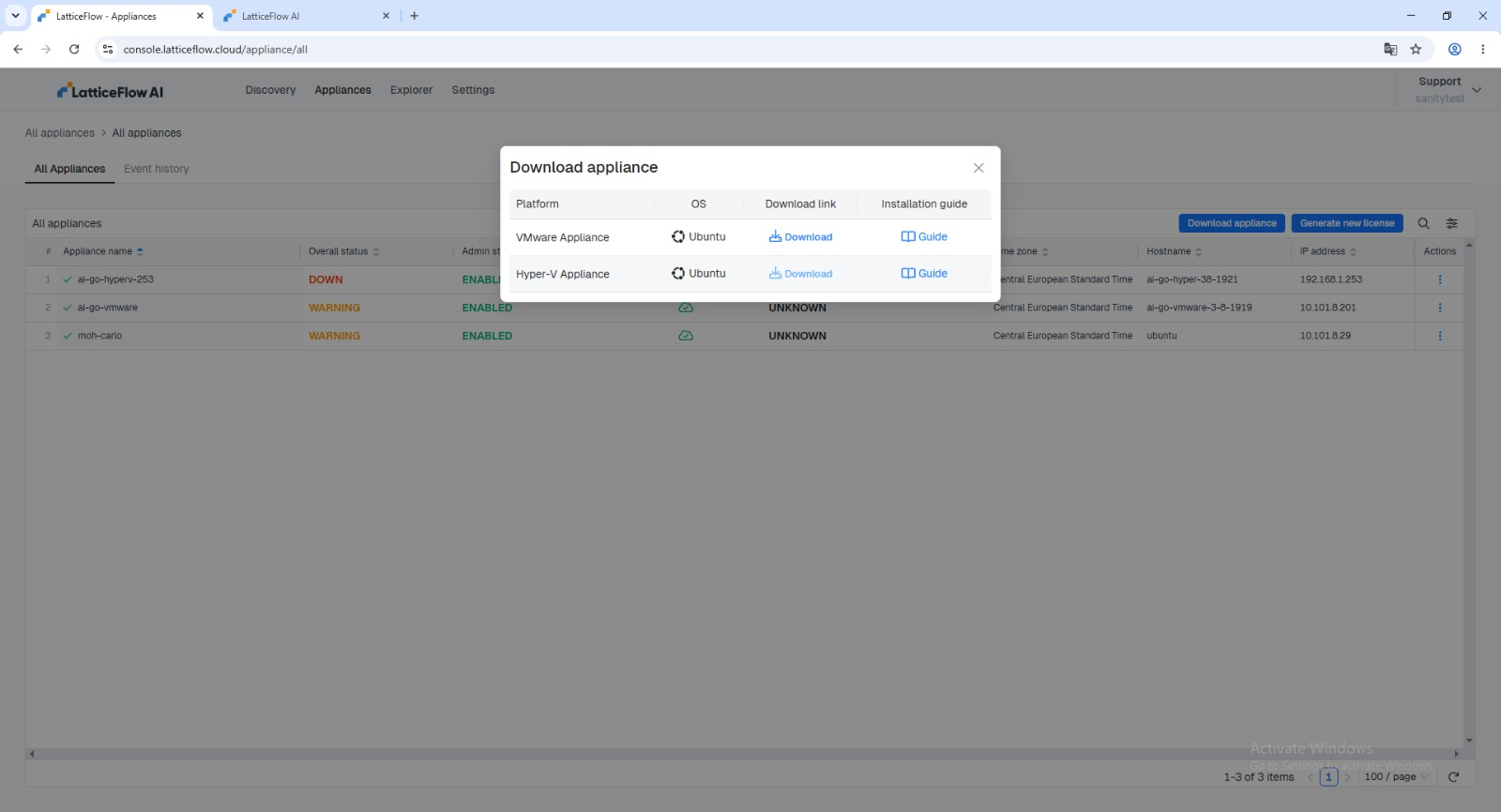
Save the downloaded ZIP to a location the Hyper-V manager can reach, then unzip it.
Step 2: Deploy the Hyper-V image
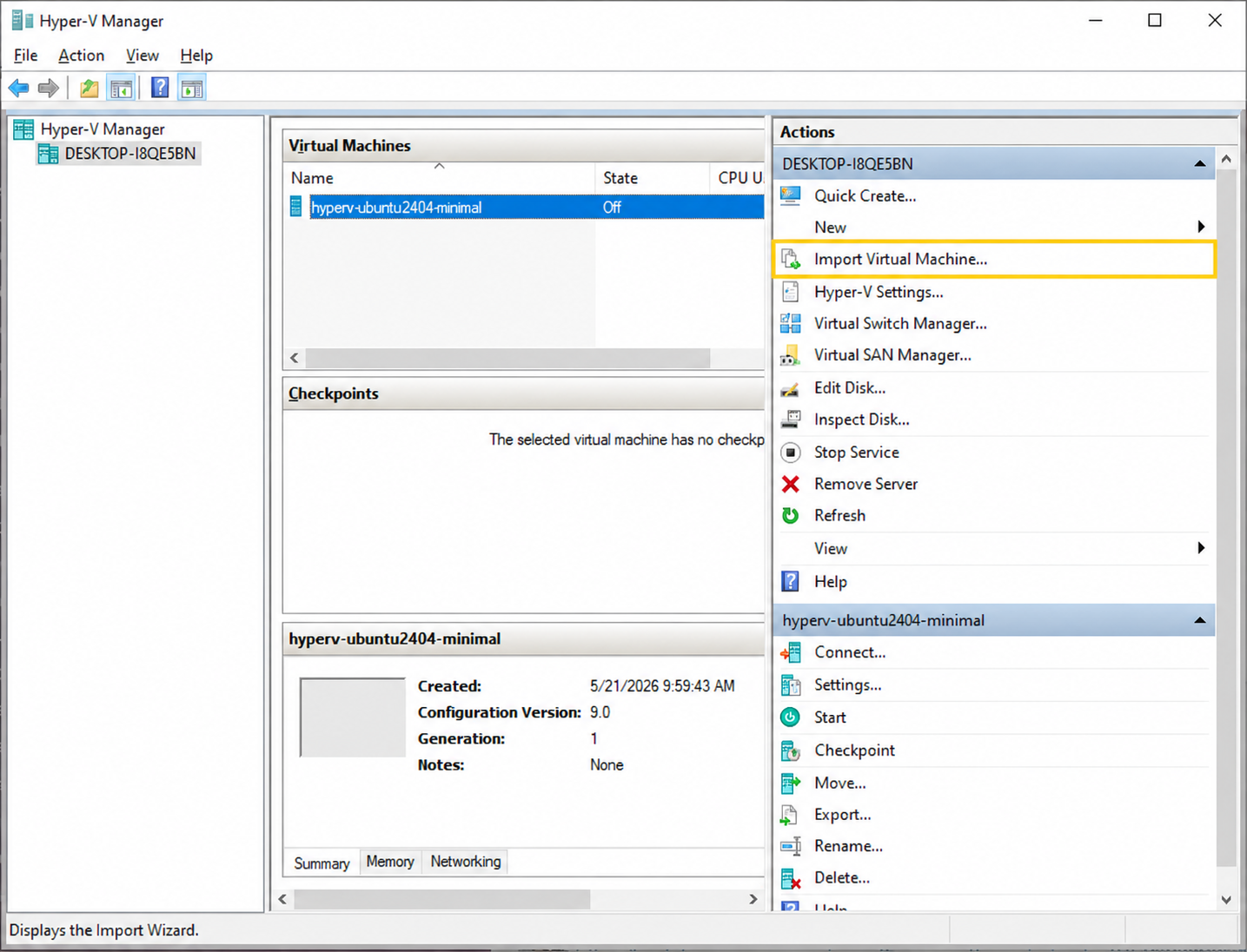
To deploy the virtual appliance, open Hyper-V Manager.
In the Actions pane on the right, select Import Virtual Machine.
Complete the wizard:
Step 2.1: Select the Image Folder
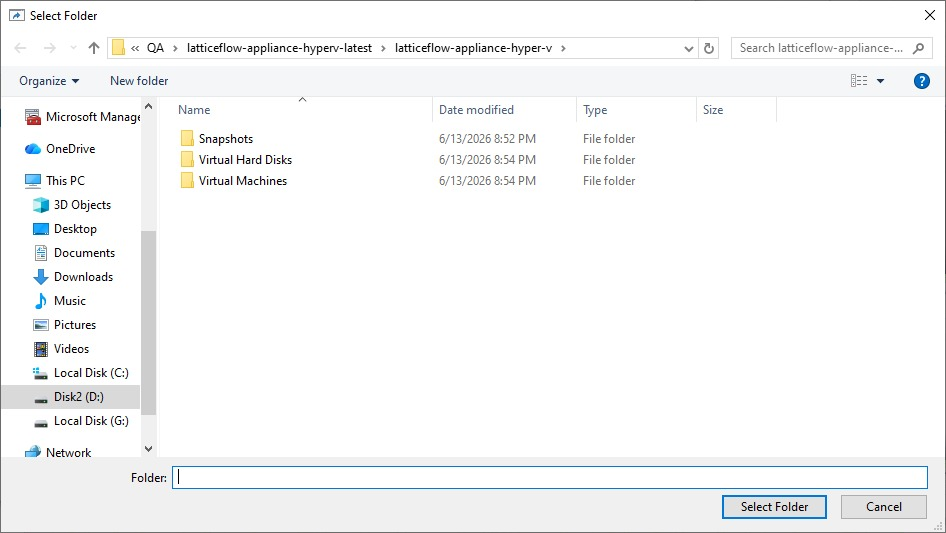
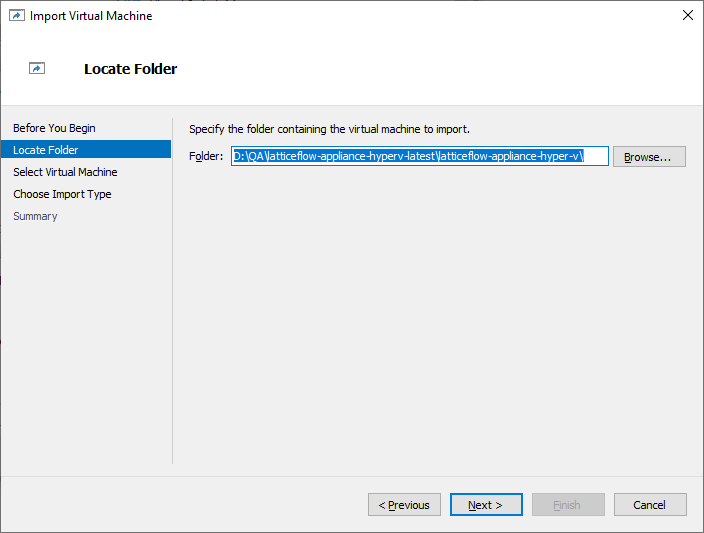
Browse to the location where the appliance files were extracted during the Appliance Download step.
Select the parent folder containing the Virtual Hard Disks and Virtual Machines directories, then click Next.
Step 2.2: Verify the Virtual Machine Details
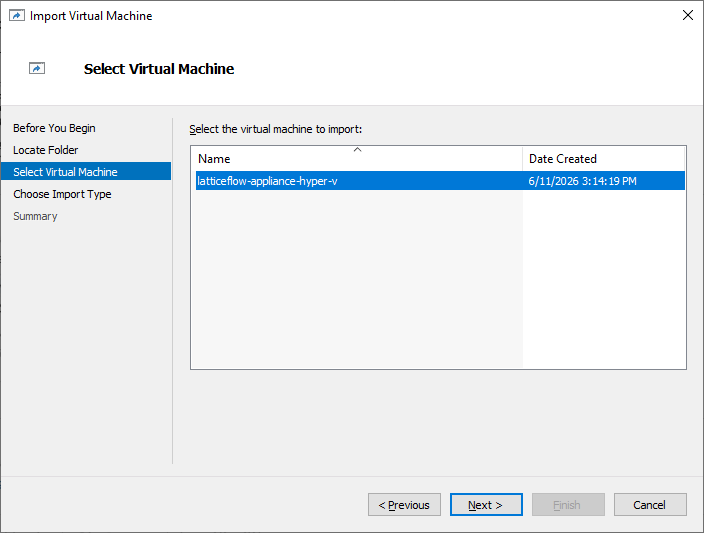
Verify that the latticeflow-appliance-hyper-v virtual machine is listed, then click Next to continue.
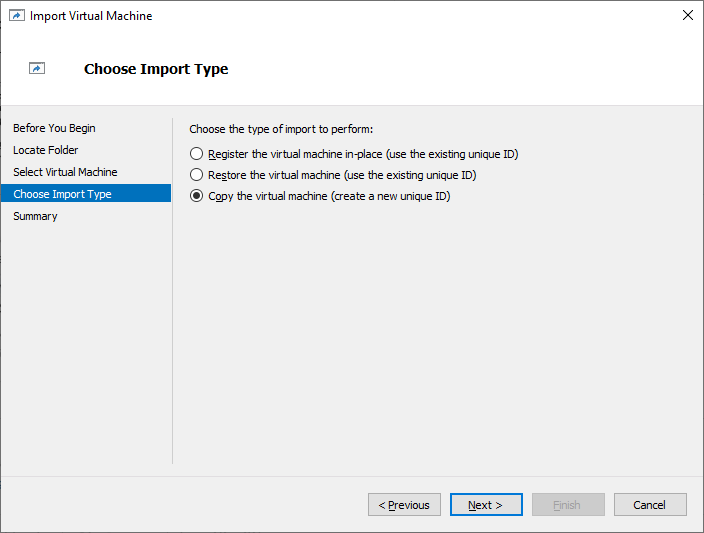
Step 2.3: Select the Import Type
Select Copy the virtual machine (create a new unique ID), then click Next.
This option creates a new unique identifier for the virtual machine and helps prevent conflicts with existing virtual machines.
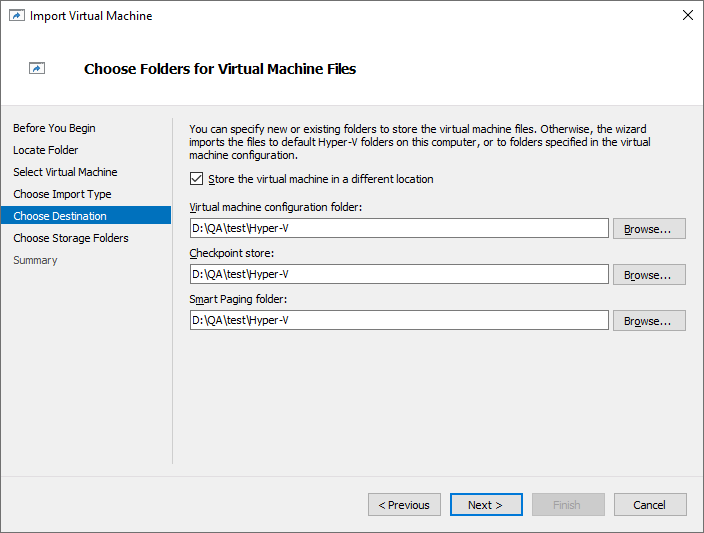
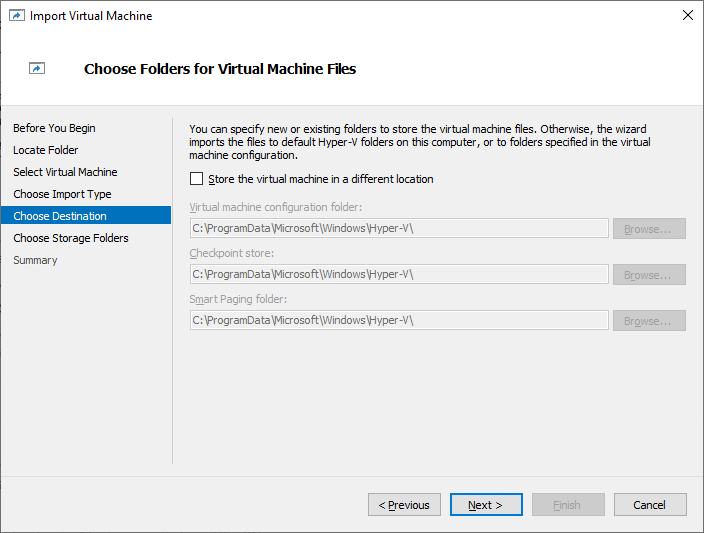
Step 2.4: Select Virtual Machine File Locations
Choose where the virtual machine files will be stored: either the default Hyper-V storage locations, or custom locations for the virtual machine configuration, checkpoints, and smart paging files.
Once the desired storage locations are selected, click Next.
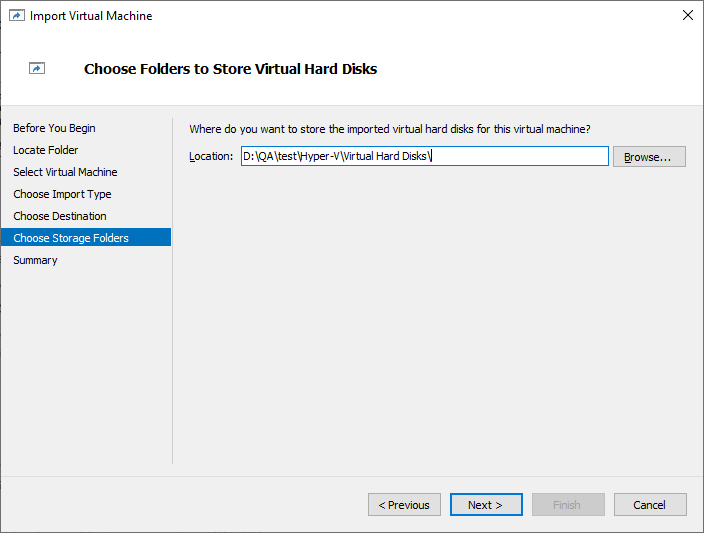
Step 2.5: Select the Virtual Hard Disk Storage Location
Choose the folder where the imported Virtual Hard Disks will be stored, then click Next.
Step 2.6: Connect the Network Adapter
If the wizard shows a Connect Network page, the virtual switch the image was built with does not exist on your host. Select the latticeflow switch created in Create an External Virtual Switch, or your existing external switch, then click Next.
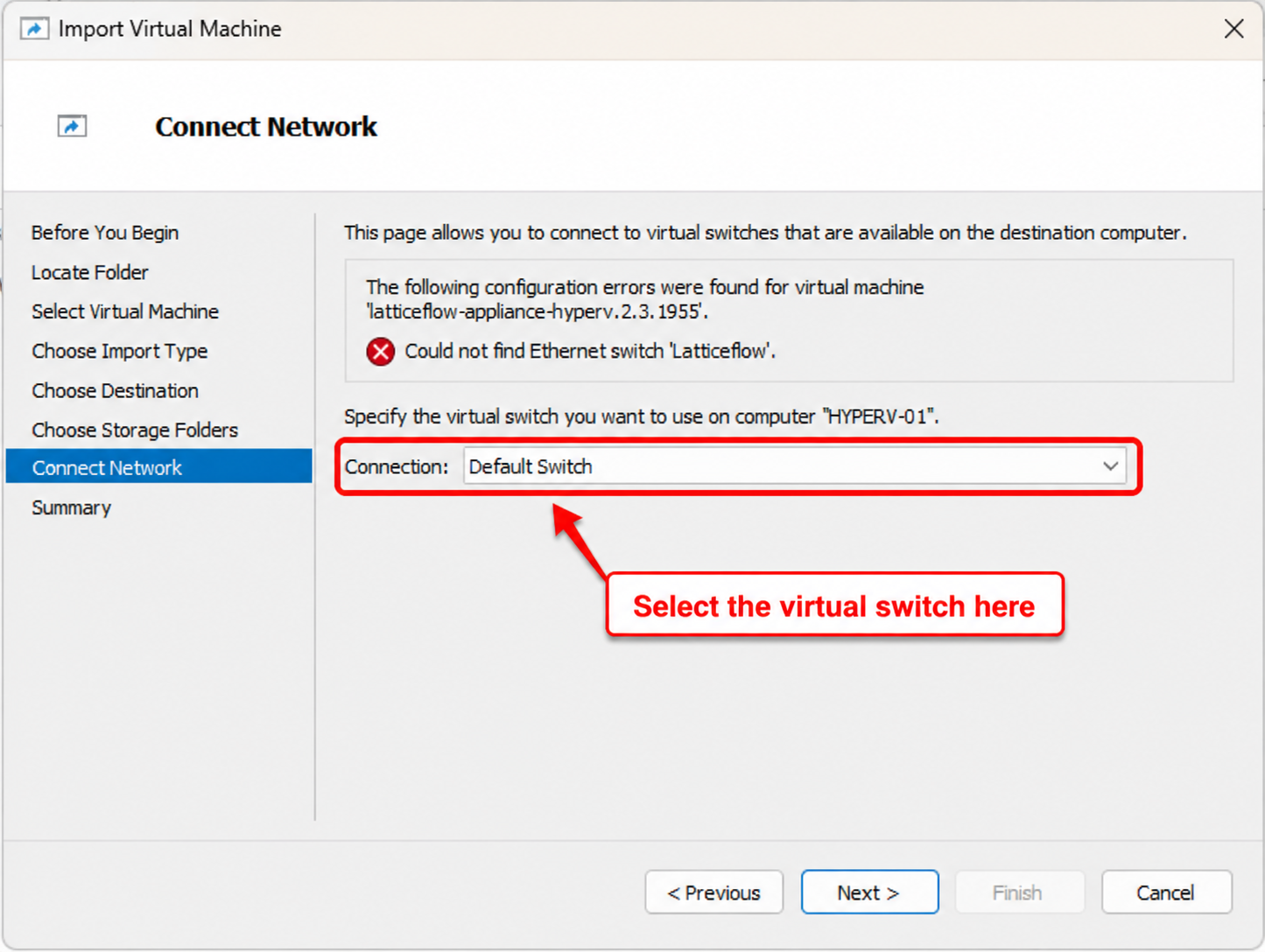
If the page does not appear, verify the connection after the import: right-click the virtual machine, select Settings → Network Adapter, and make sure the external switch is selected rather than the Default Switch.
Step 2.7: Complete the Import
Review the import settings to ensure they are correct, then click Finish to import the virtual appliance.
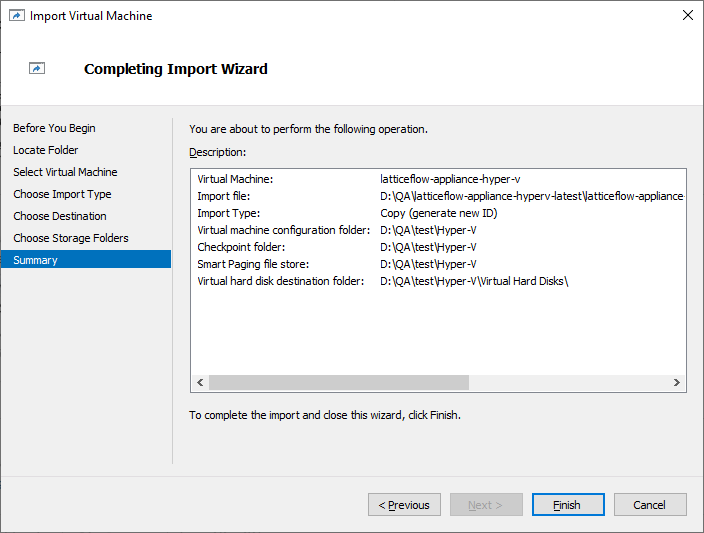
After the appliance is created, a confirmation appears and the new virtual machine is listed in Hyper-V Manager.
Step 3: Power On the Appliance
In the list of deployed virtual machines, select the appliance.
In the Actions pane on the right, click Start to power on the virtual appliance.
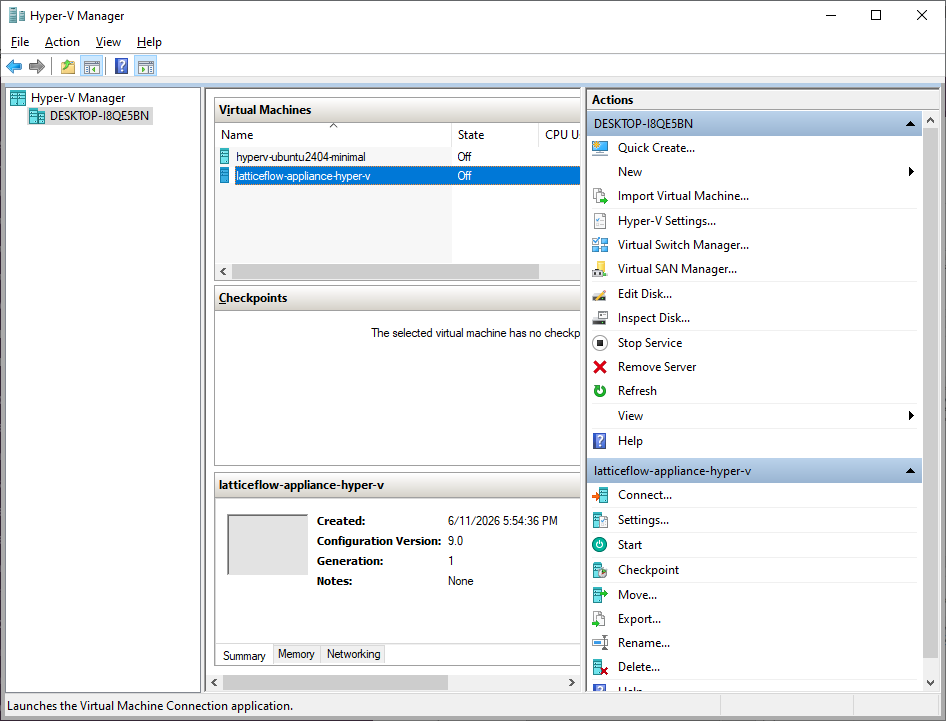
Right-click the appliance again, then select Power → Power On.
If a DHCP server is available on the selected network, the appliance obtains an IP address automatically and the setup wizard offers to keep it. Otherwise, the wizard asks for a static address.
The appliance is now deployed. Next, Configure the virtual appliance.