Explorer
Explorer is where the assets a scan discovers can be analyzed, with tools to search, filter, and compare systems.
Inventory
The Inventory view lists discovered assets — servers, applications, services, and other configuration items. Select an item to see its details, including relationships and dependencies.
After a scan job completes, results appear grouped as follows:
| Group | Description |
|---|---|
| Servers | Physical and virtual servers, cloud instances, OS/virtualization-level clusters, and containers (for example Docker). |
| Applications | Recognized software components — web servers, application servers, databases, middleware, directory services, and application clusters (groups of similar applications that together provide a service, such as a database or messaging cluster). |
| Found Applications | Communicating processes that may represent an application, but haven’t been confirmed. Convert one into an Application using fingerprinting. |
| Found Groups | Automatically generated groupings of communicating Found Applications and related components, suggesting a potential service. They update in real time as communication relationships change, and can be converted into a Service using fingerprinting and templating. |
Enable Show empty categories to see all categories, including ones with no discovered items.
All Computer Systems
Go to Compute → Computer Systems → All Computer Systems to manage and monitor the fleet of discovered servers.
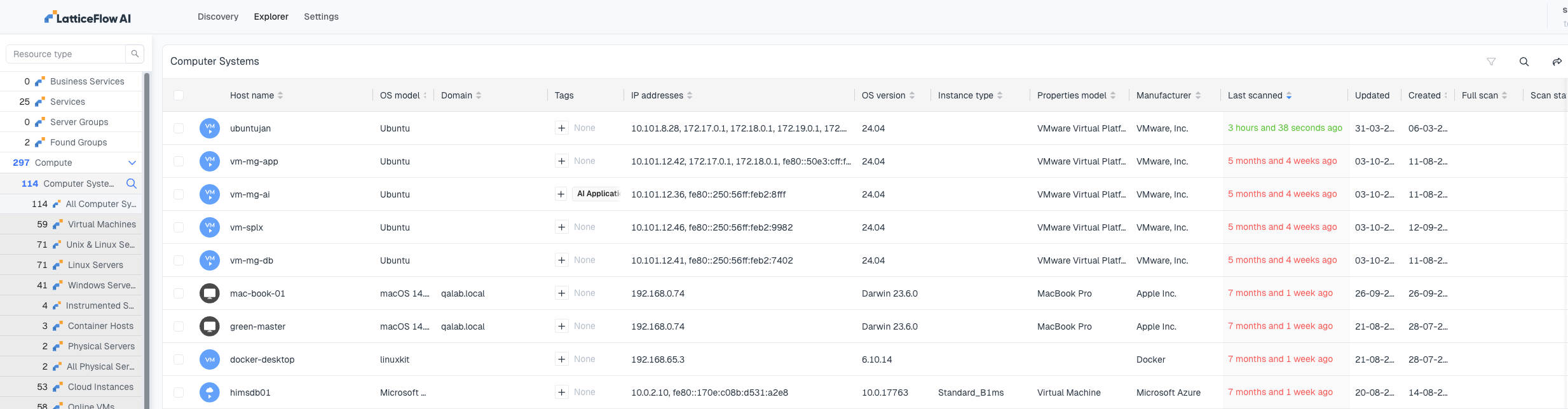
The table includes:
| Column | Description |
|---|---|
| Host Name & Domain | Primary identifiers for the machine |
| OS Details | OS model (for example, Ubuntu, Windows) and version |
| Network Info | Associated IP addresses |
| Tags | Custom labels for organizing systems |
| Hardware & Scan Status | Manufacturer, total memory, and last-scanned timestamp |
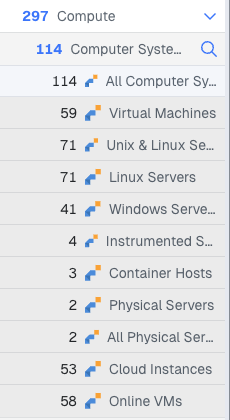
Use the sidebar to drill into categories such as virtual machines vs. physical servers, Unix/Linux vs. Windows, and cloud instances.
Sort any column by selecting its header: first select for ascending order, second for descending, third to return to the default order.
Search
Use Search to quickly locate specific assets across the discovered environment — servers, applications, IP addresses, or services.
Compare CIs
Compare CIs allows configuration items to be compared to identify differences between systems or environments, useful for troubleshooting configuration drift or validating migration readiness.
Export Data
From any Explorer table (Computer Systems, Services, Applications), select the export icon in the top-right corner, then choose a format:
- CSV — standard comma-separated values.
- Excel — formatted spreadsheet.
- Custom — select specific columns to include.
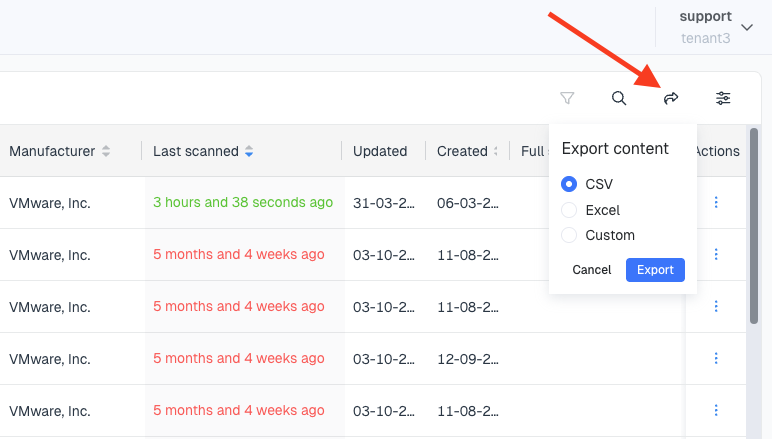
Select Export to download the file.