Scan Job Status
The scan job status view shows the current and historical status of a scan job, for monitoring execution, reviewing results, and troubleshooting discovery issues.
Open it from Discover → Scan Jobs by selecting the scan job to review.
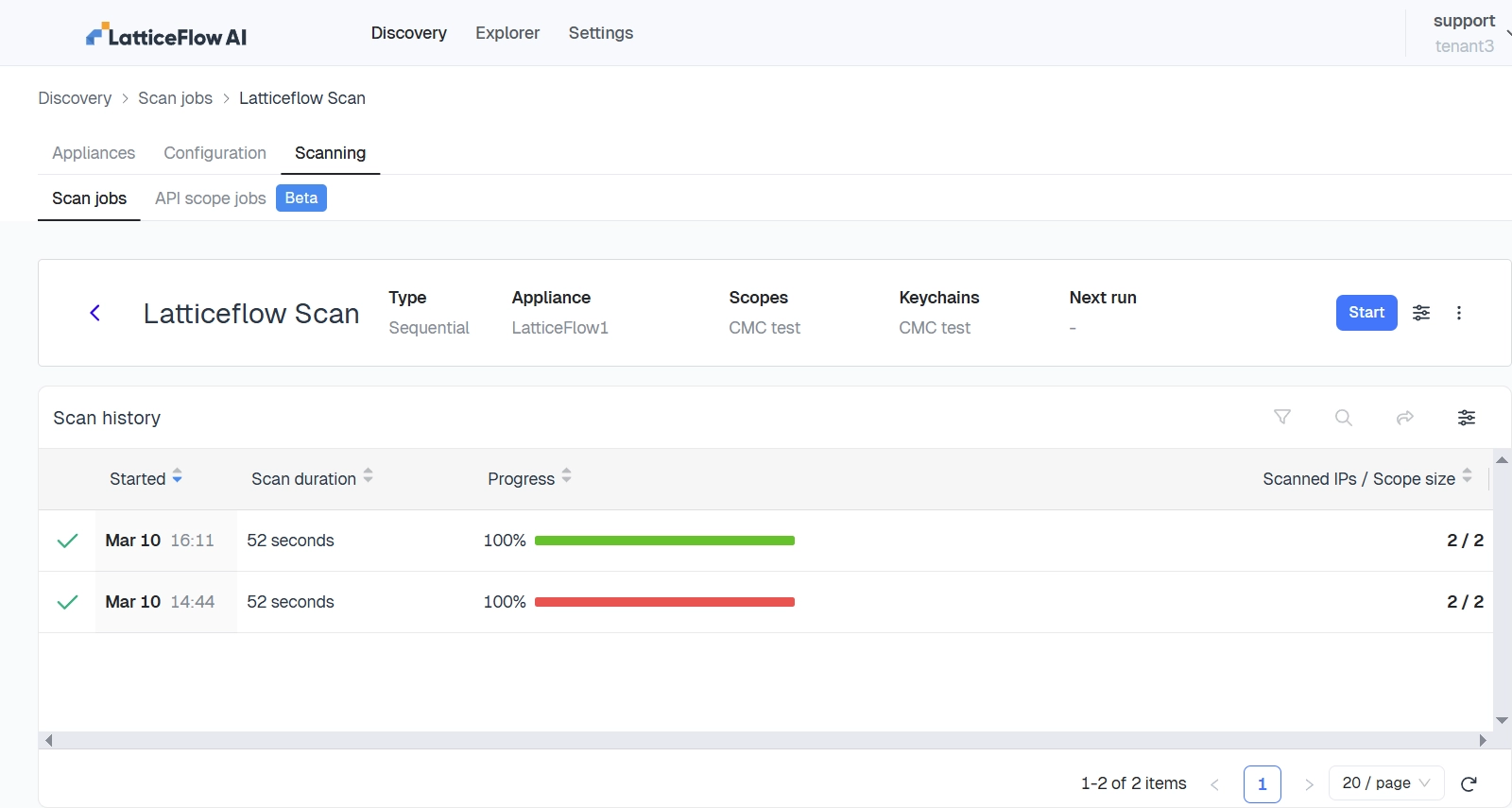
Scan Job Summary
| Field | Description |
|---|---|
| Scan Job Name | Name of the scan job |
| Appliance | Appliance running the scan |
| Type | Scan job type |
| Last Started | When the scan job last ran |
| Progress | Current or last completion status |
| Scan Scope Size | Total number of IPs in the scope |
| Next Run | Next scheduled run, if any |
Scan History
Each past run shows:
| Field | Description |
|---|---|
| Started | Date and time the scan began |
| Scan Duration | Total time to complete |
| Progress | Completion percentage |
| Scanned IPs / Scope Size | Number of IPs scanned versus the total in scope |
Select a run’s progress bar to open its Scan Status view, which lists results for every target scanned:
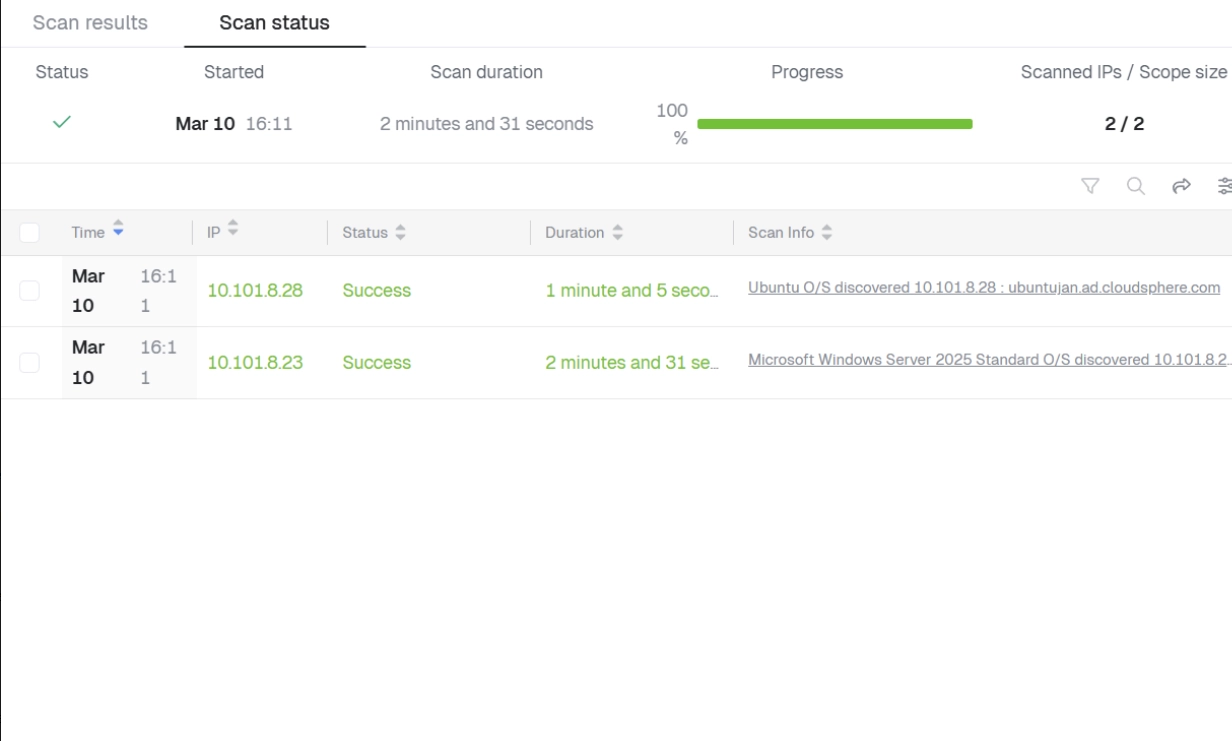
| Field | Description |
|---|---|
| Time | Timestamp of the scan attempt |
| IP | Target IP address |
| Status | Result of the scan |
| Duration | Time spent on this target |
| Scan Info | Additional detail about the result |
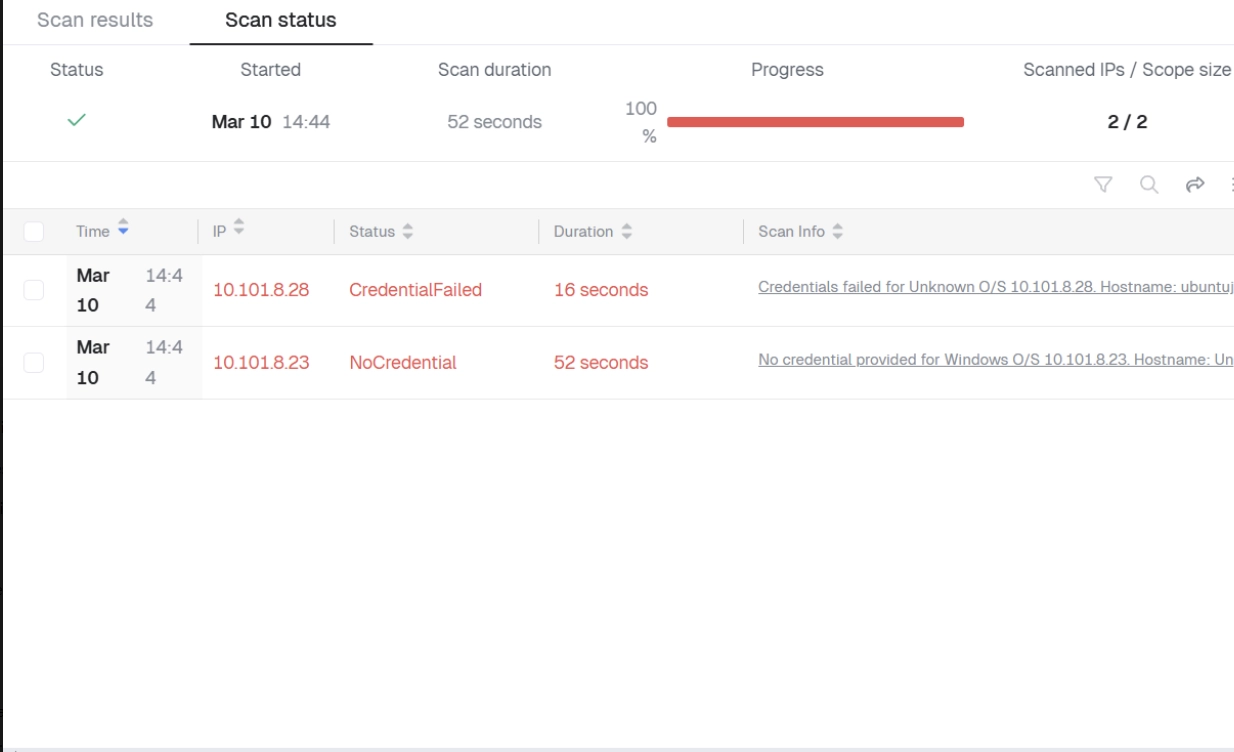
Scan Result Types
Each target reports Success if it was scanned and information was discovered, or one of several other statuses if it wasn’t. See Troubleshoot scan jobs for the full list of statuses, their causes, and the required action.
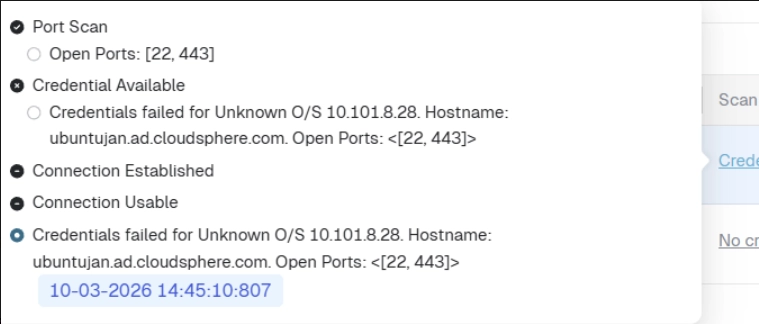
For deeper troubleshooting, open a target’s Scan Info link for details such as port scan results, TCP connectivity checks, ICMP ping results, and credential validation status.
Export Results
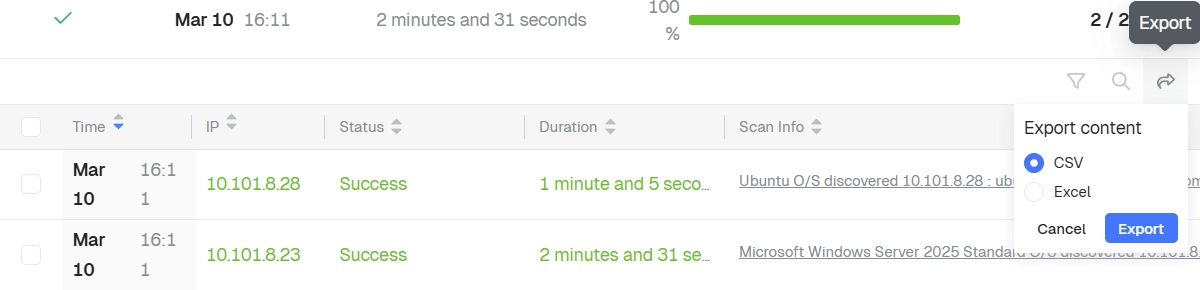
From the Scan Status view, select Export and choose CSV or Excel to share results with infrastructure or operations teams.