Configure a Scan Job
Prerequisites
- At least one appliance is Deployed and registered.
- A Scan scope defining the targets to scan.
- A Keychain with credentials for those targets.
Step 1: Create the Scan Job
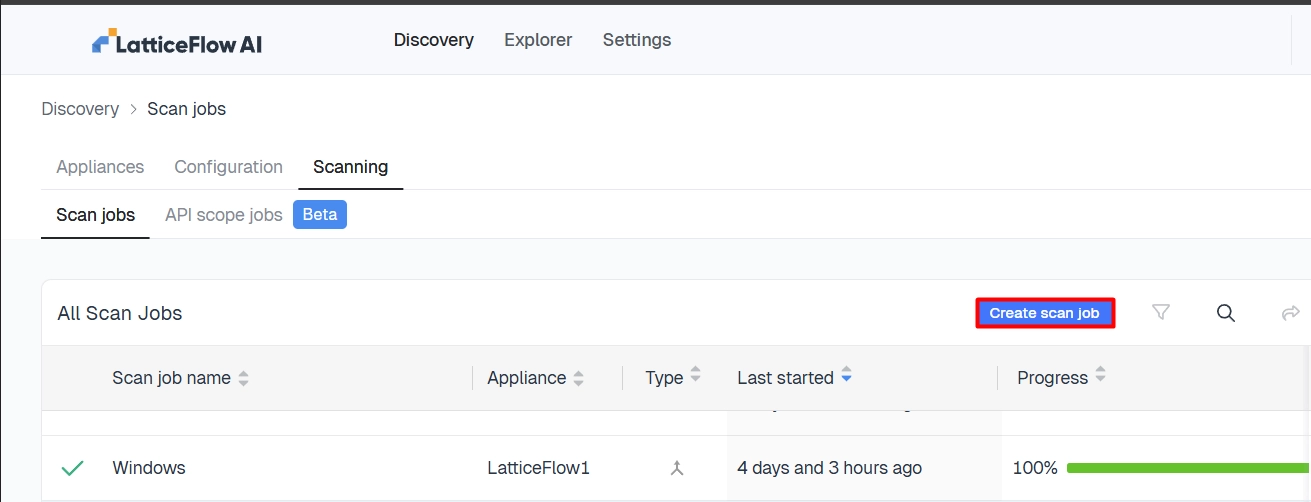
In the cloud Console, go to Discover → Scan Jobs, then select Create Scan Job. Give it a unique name and an optional description.
Step 2: Select the Scan Job Type
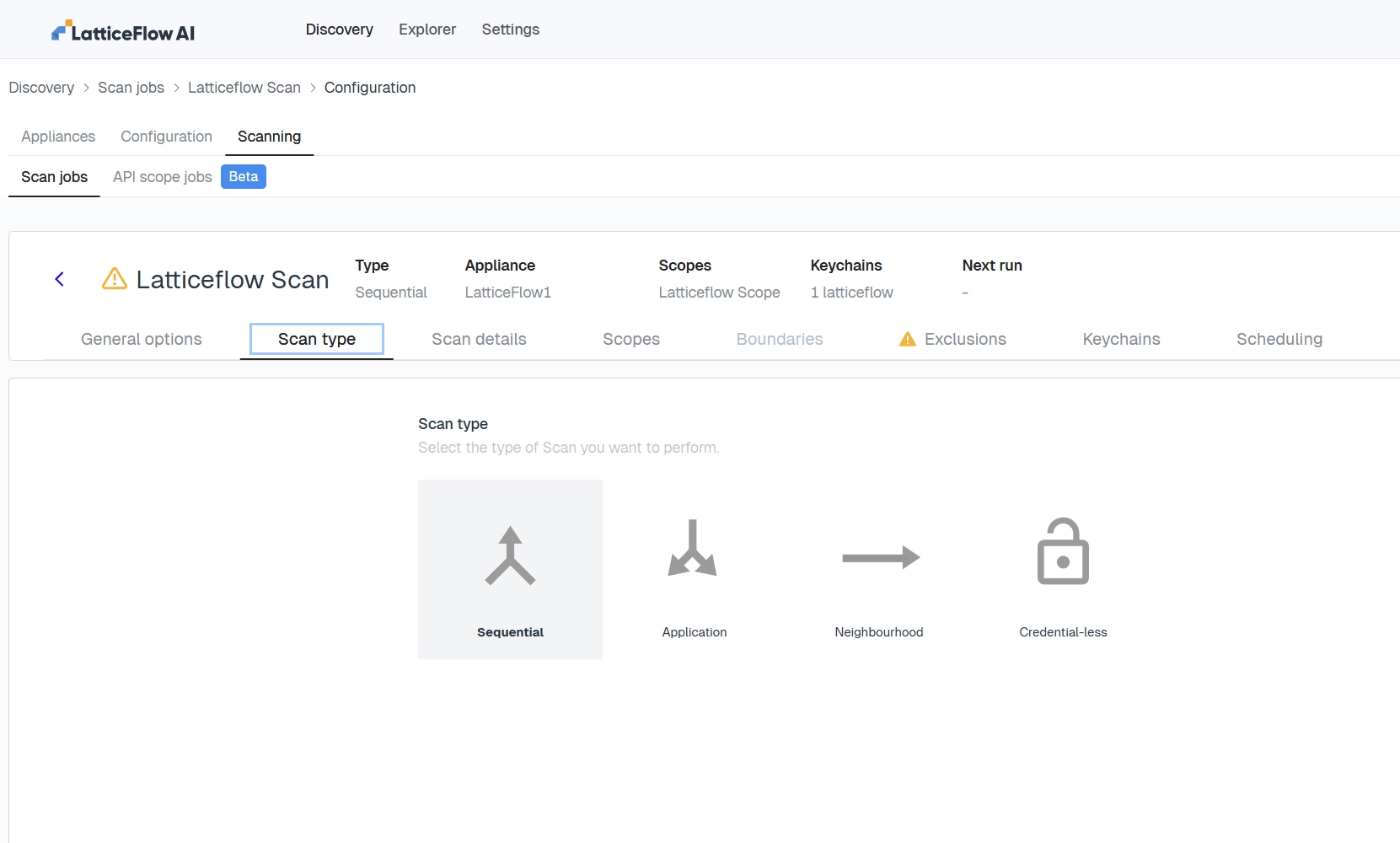
Choose a Scan job type: Sequential, Application, Neighborhood, or Credential-less.
Step 3: Configure Scan Details
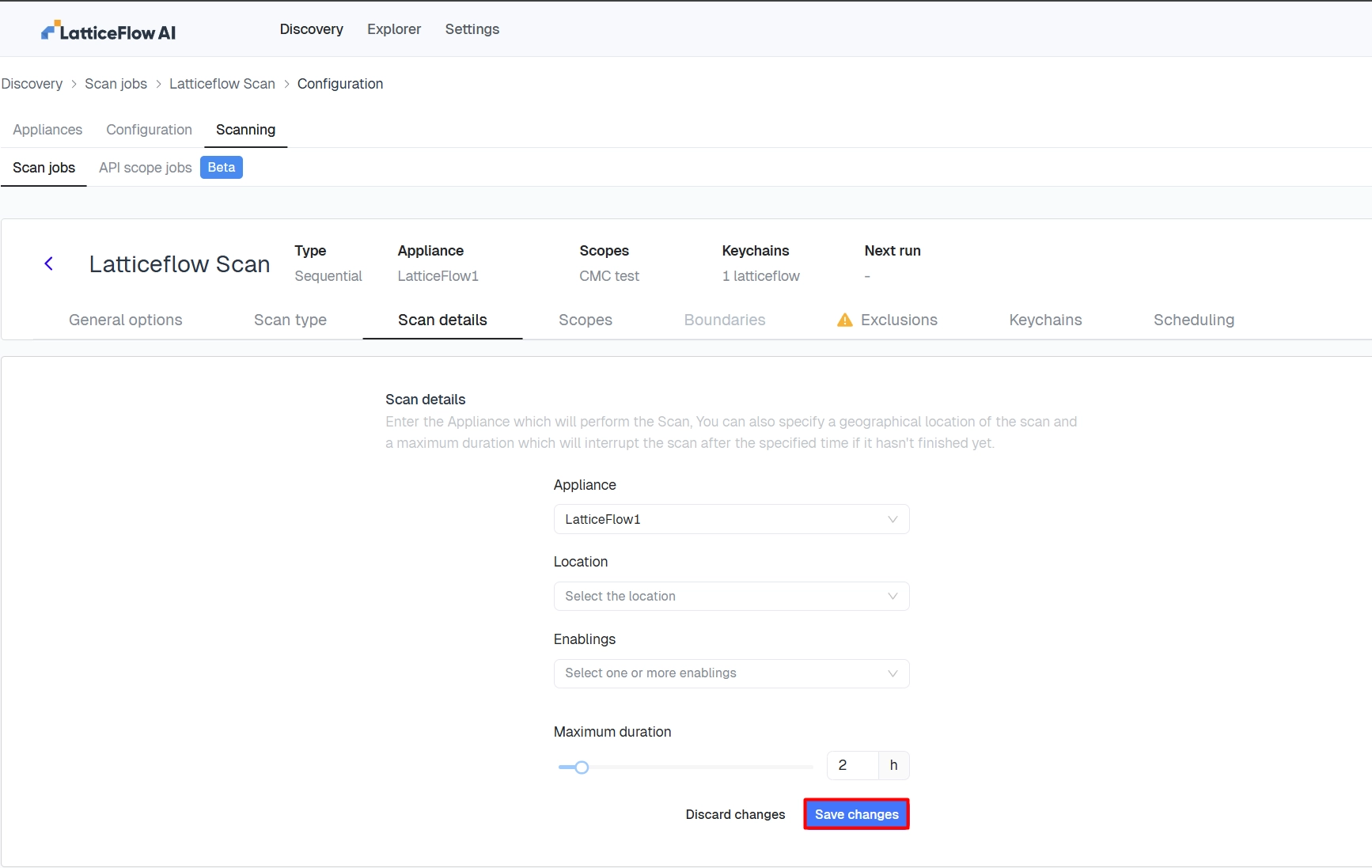
On the Scan Details tab:
- Select the appliance to run this scan job.
- Optional: set the location, which populates the Location field for any targets this job discovers.
- Optional: set any Scan job options.
- Set the maximum duration, in hours. If the scan doesn’t finish within this time, it’s automatically terminated.
Confirm the selected appliance has network access to the scan targets — see Plan your deployment.
Step 4: Add Scopes and Exclusions
On the Scopes tab, select the checkbox next to each scope to include, then confirm. If the required scope isn’t listed, Create it first.
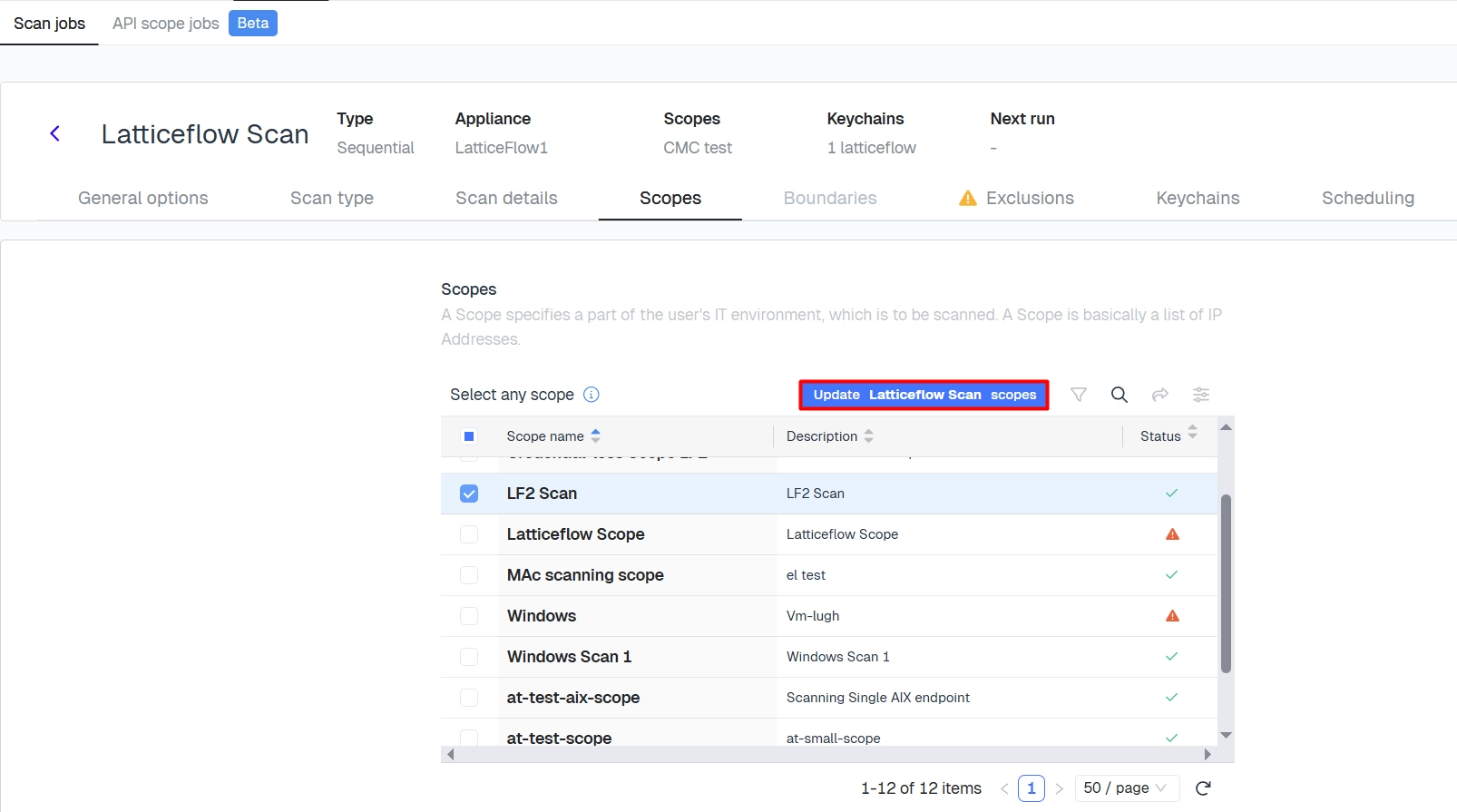
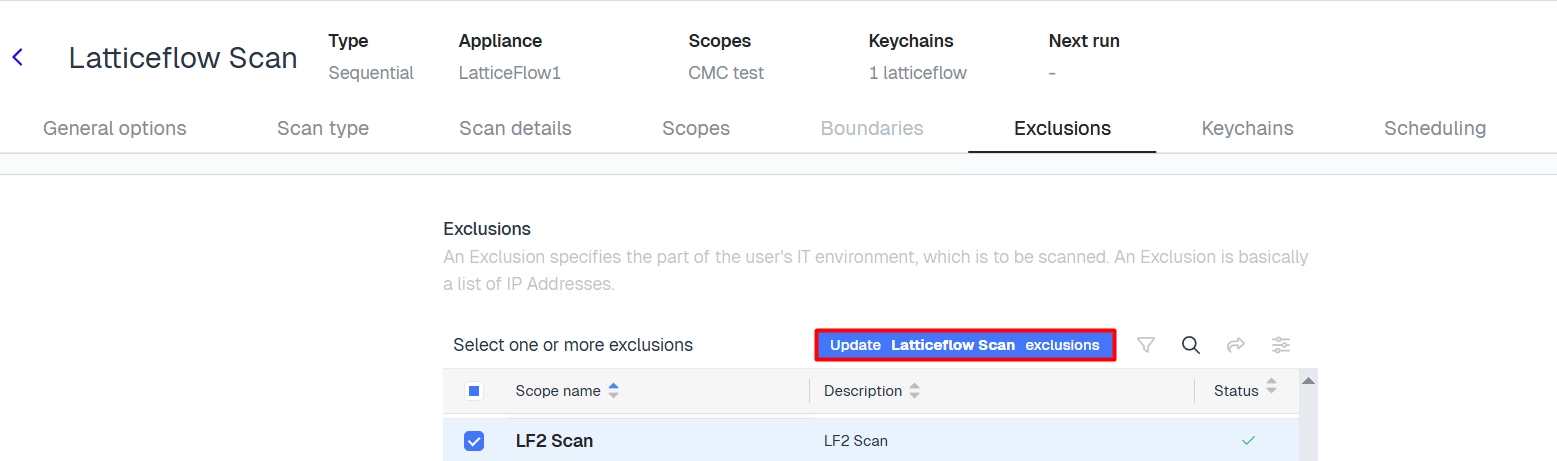
To exclude targets, create a scope containing them, then select it on the Exclusions tab.
Step 5: Add Keychains
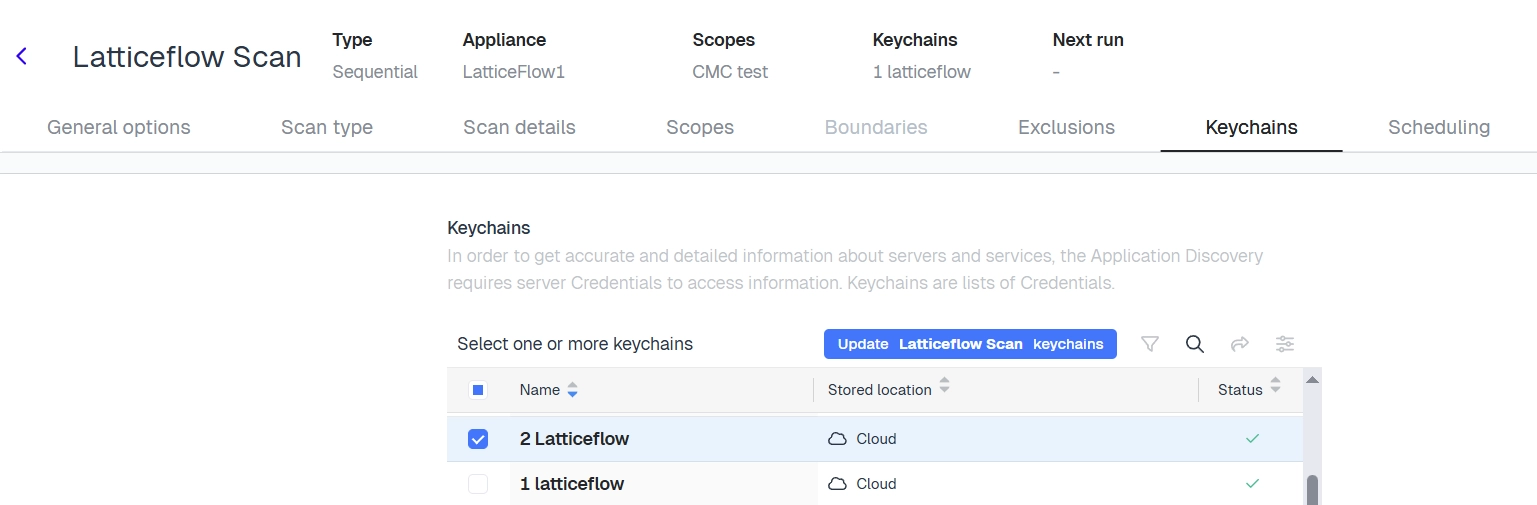
On the Keychains tab, select one or more keychains to supply credentials for the scan, then confirm.
Step 6: Add a Schedule (Optional)
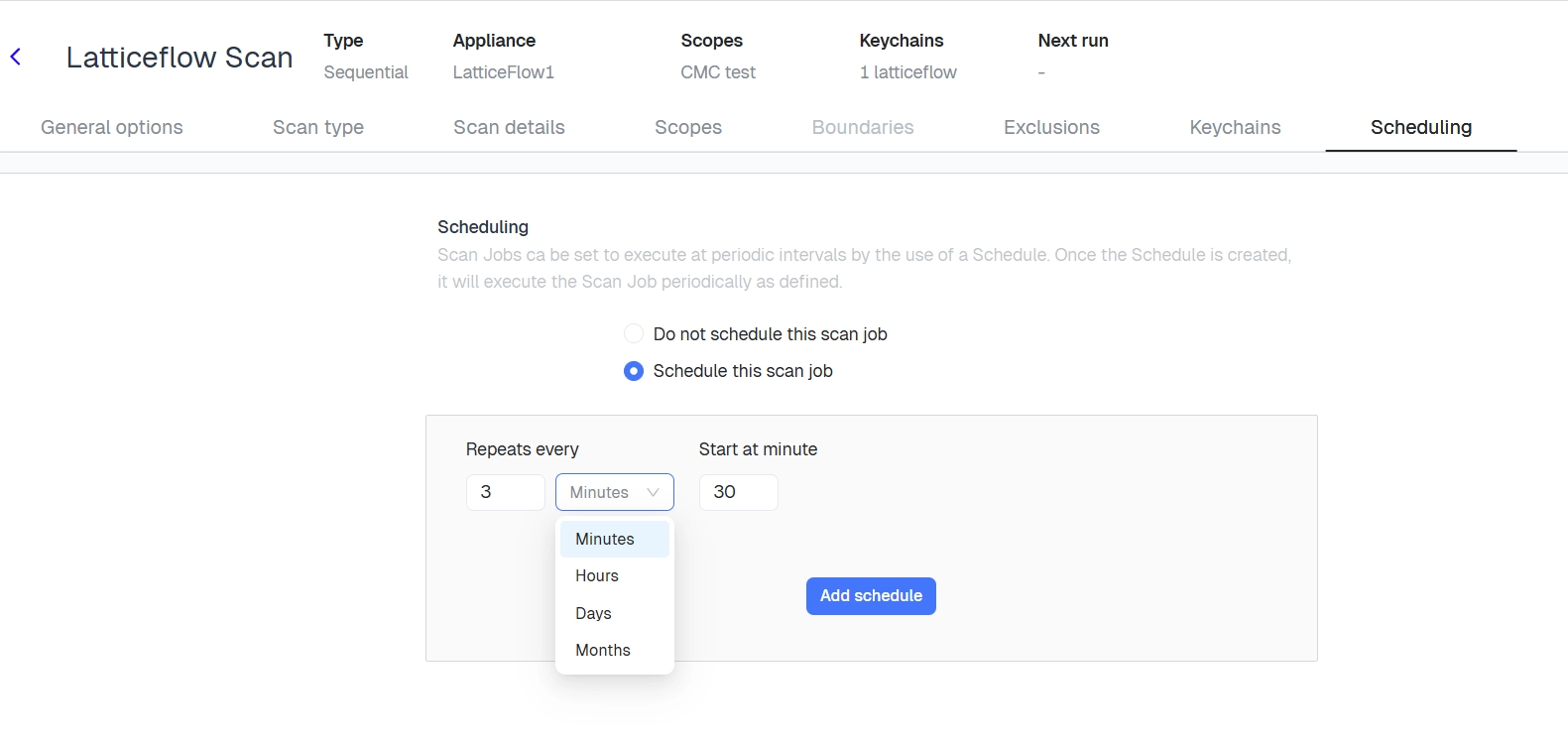
Add a schedule to automate when the scan runs, using a time-based scheduler similar to cron:
- Interval — repeat within a day, for example every 4 hours starting at a given time.
- Daily — run once per day at a specified time.
- Weekly — run on selected days of the week, for example every Monday and Thursday at 03:00.
- Monthly — run on a specific day of the month, for example the 1st at 02:00.
A scheduled scan job can still be Run manually at any time.