Register the Appliance
After the network is configured, register the appliance to activate it. Registration links the appliance to the Cloud Console and applies a license.
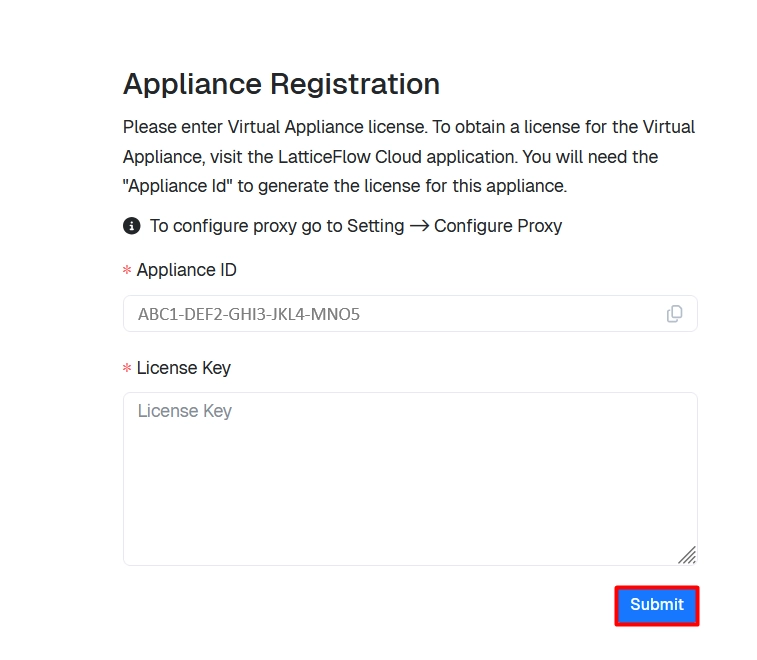
The appliance serves its own application UI at https://<appliance-ip>/, where the Appliance ID is copied and the license is applied. The license is generated in the cloud Console.
Step 1: Copy the Appliance ID
Open a browser and sign in to the application UI at https://<appliance-ip>/.
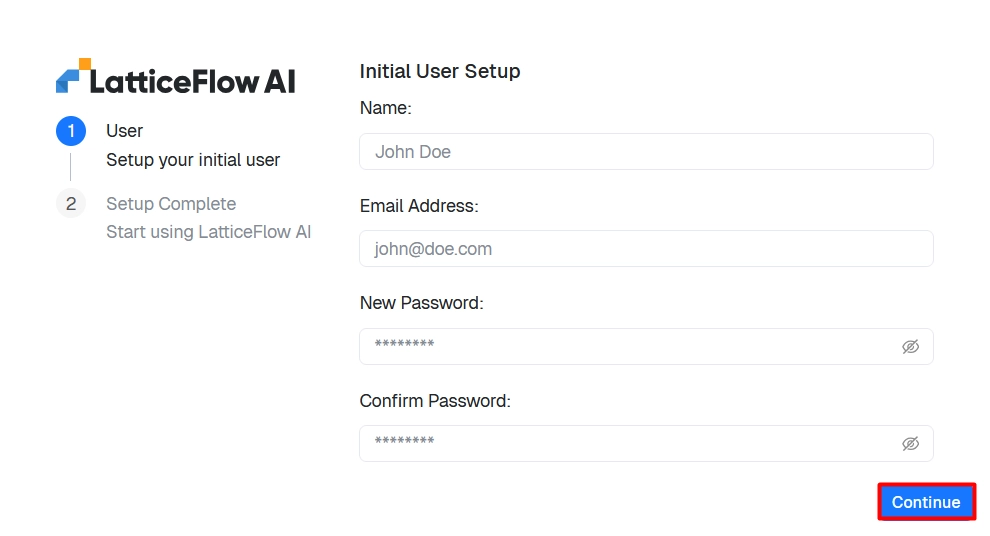
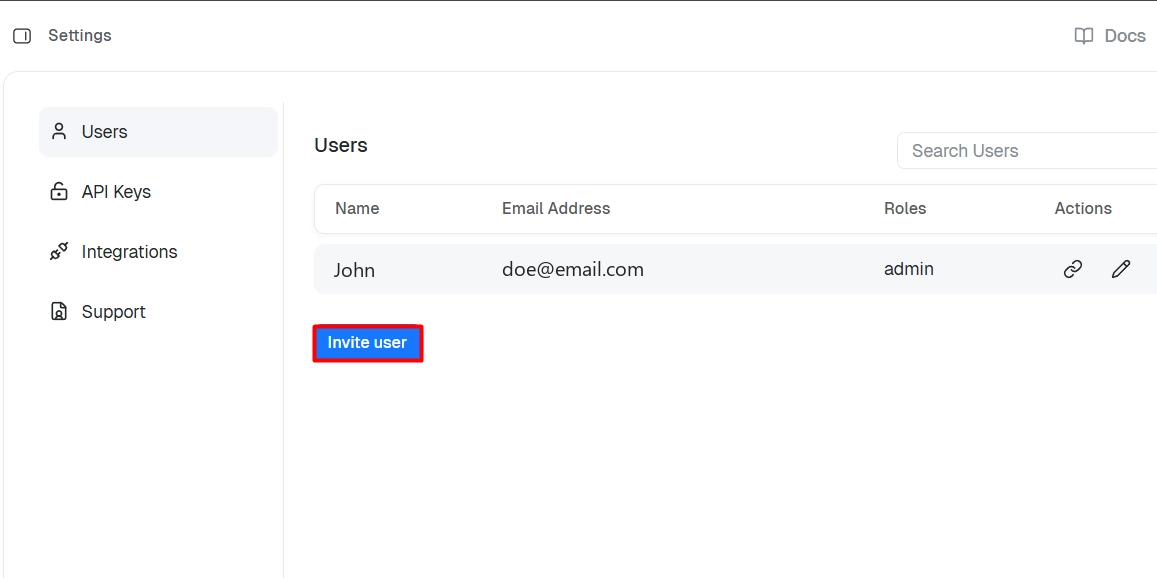
From Settings, additional users can be invited and assigned a role.
On first login, the appliance shows the registration screen. Copy the unique Appliance ID.
Step 2: Generate a License in the Cloud Console
Complete this step for each appliance in the environment.
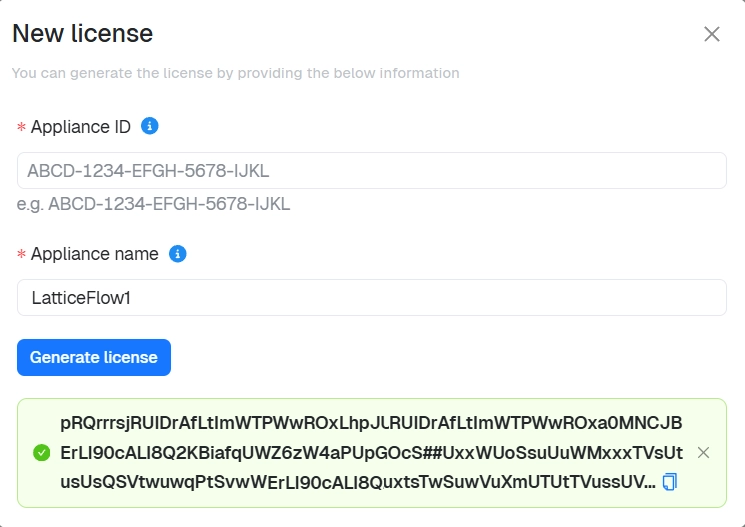
Open the Cloud Console, go to the Appliances list, and select Generate new license.
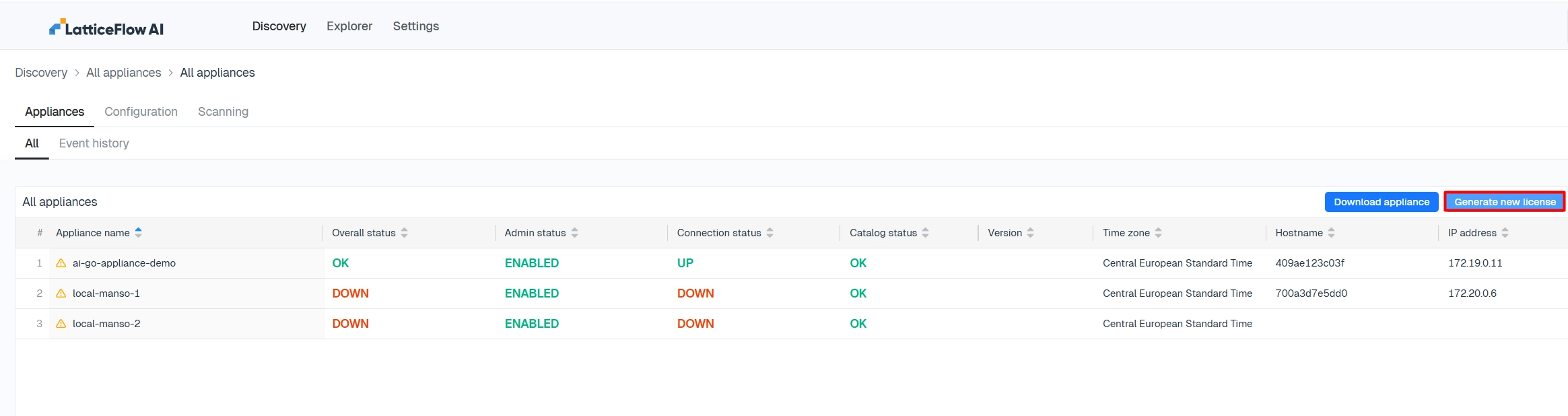
Enter the copied Appliance ID and a name for the appliance, then select Generate license. Copy the generated license key.
Step 3: Apply the License
Return to the application UI and paste the license key.
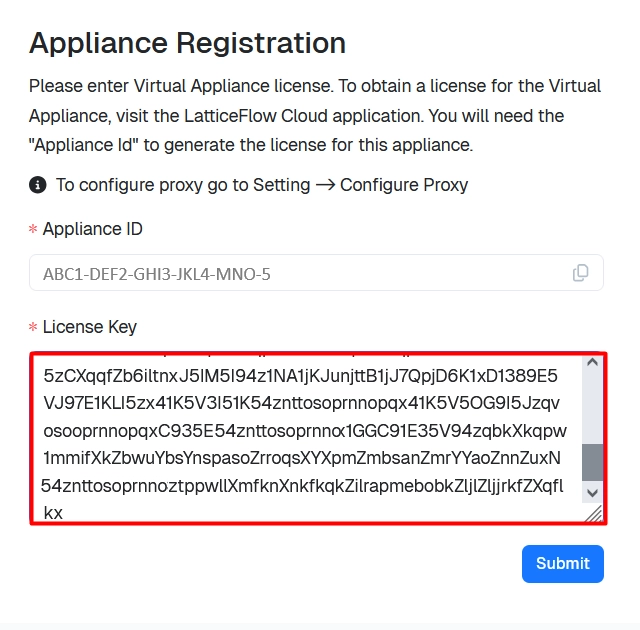
The appliance shows a summary of the registration. Confirm to complete it.
Step 4: Confirm Registration
The registered appliance appears in the Appliances list in the cloud Console.
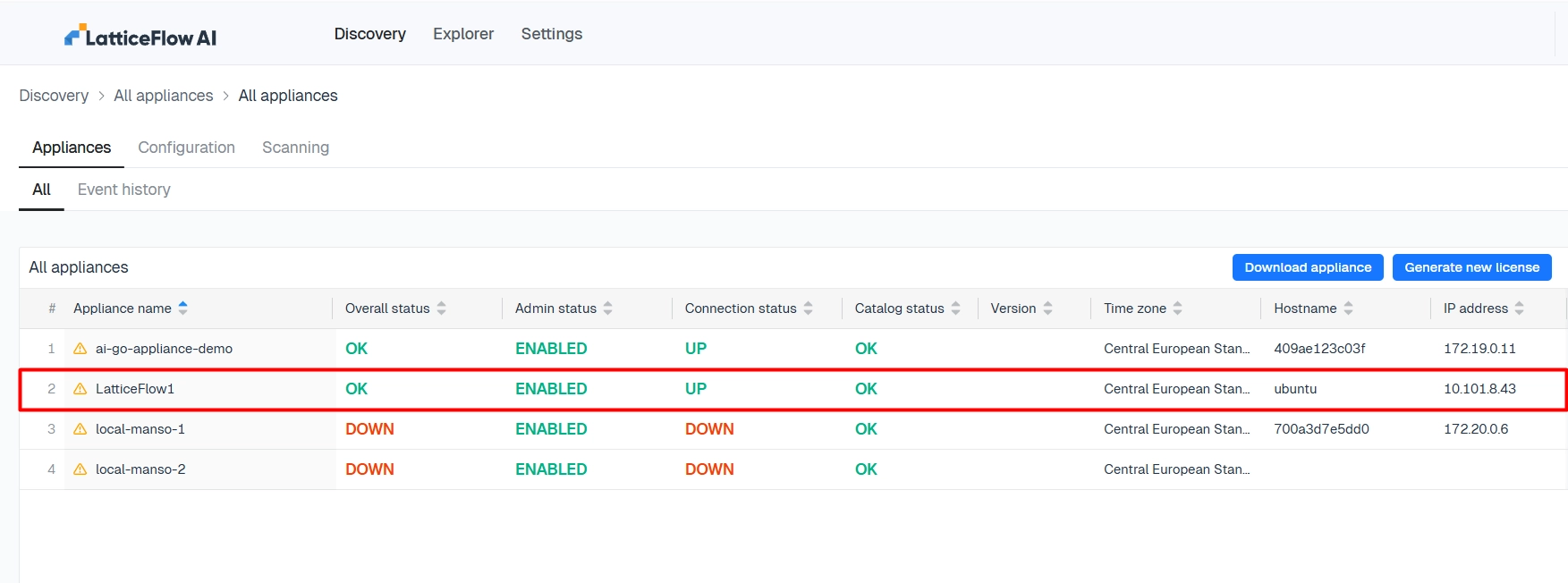
The appliance is now installed and registered. When an upgrade is available, Upgrade the appliance to the latest version.